
If you work on Google Workspace automation, sooner or later the online editor slows you down.
clasp (Command Line Apps Script Projects) lets you develop Apps Script locally, use VS Code, commit to Git, automate deployments, and generally work like a modern JS team. This guide covers installation, daily commands, project structure, TypeScript, logs, deploys, and real-world troubleshooting (including Windows/PowerShell quirks) so you can ship faster and safer.
What is clasp (and why use it)?
clasp is Google’s official CLI for Apps Script. It syncs code between your local folder and your Script project, manages versions/deployments, and unlocks editor-quality DX in VS Code (intellisense, linting, formatting, test runners, etc.). Core benefits:
- Local dev + Git: edit with your toolchain, review PRs, branch safely.
- Faster iteration: push/pull instead of copy/paste.
- Typed workflows: use TypeScript +
@types/google-apps-script. - Automations: wire into CI to version & deploy.
Prerequisites
- Node.js (current LTS recommended) and npm.
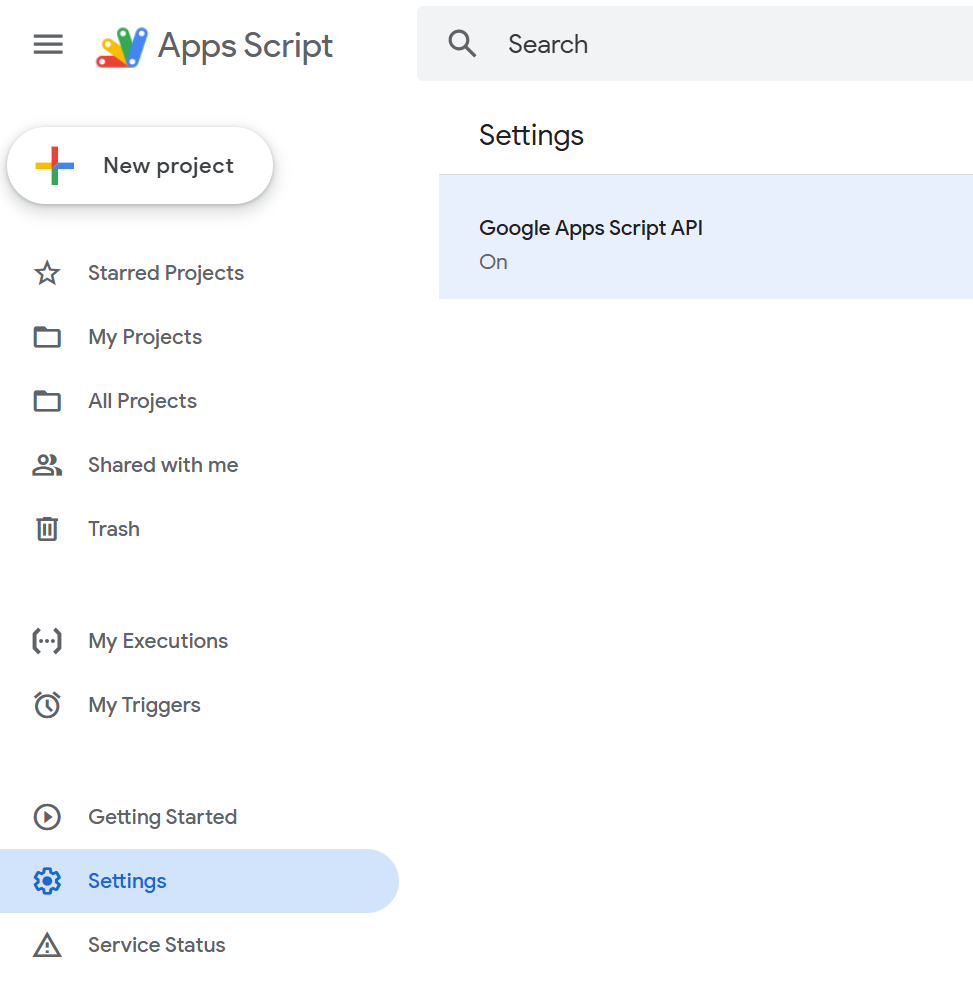
- Enable “Apps Script API” for your account at Apps Script > Settings > Enable Apps Script API (one-time).
Install & authenticate
npm install -g @google/clasp
clasp -v
clasp login
clasp login opens a browser to authorize your Google account and stores a credential file named .clasprc.json (password-like; don’t commit it). On some commands you may also see a project-local .clasprc.json—more on this in Troubleshooting.
Create or clone a project
Create a brand new script in the current folder:
mkdir my-script && cd my-script
clasp create --type standalone --title "My Script"
This writes two important files locally:
.clasp.json– project settings (scriptId, rootDir, etc.)appsscript.json– the Apps Script manifest (scopes, time zone, etc.)
You can also clone an existing project if you have thescriptId:
clasp clone <SCRIPT_ID>Daily workflow (push/pull/run/logs/open)
# Pull remote changes (online editor → local)
clasp pull

# Push local changes (local → Apps Script)
clasp push

# Run a server-side function
clasp run myFunction

# Tail logs (Cloud Logging)
clasp logs --watch

# Open the project in the web editor
clasp open
Tips:
- Use
clasp push --watchduring rapid editing. - If
clasp runcomplains about auth, see the Local vs Global .clasprc note below.
Smart project structure with rootDir
Want clean source in src/ and compiled output in build/? Configure rootDir in .clasp.json:
{
  "scriptId": "YOUR_SCRIPT_ID",
  "rootDir": "build",
  "fileExtension": "ts"
}
clasp will sync the rootDir to Apps Script, your source can live elsewhere and be built into build/. There’s also filePushOrder when you must guarantee upload order (rare, but handy).
Ignore junk with .claspignore (similar to .gitignore):
node_modules/
.git/
.vscode/
**/*.test.ts
TypeScript + typings (recommended)
- Add dev deps:
npm init -y
npm i -D typescript @types/google-apps-script
npx tsc --init
Set outDir to build and target ES2019+ in tsconfig.json.
2. Point .clasp.json → "rootDir": "build", "fileExtension": "ts" (above).
3. Now write .ts in src/, compile to build/, then clasp push. The @types/google-apps-script package gives VS Code autocompletion for Services like SpreadsheetApp, DriveApp, etc
Managing versions & deployments (Web App, Libraries, Add-ons)
Version the current code:
clasp version "Initial release"List versions:
clasp versionsDeploy (Web App / Add-on / Library slot):
clasp deploy --description "v1.0.0"
clasp deployments
Update an existing deployment:
clasp deploy --deploymentId --description "Bugfix"clasp deploy creates a version and a deployment in one step—ideal for Web Apps where you need a stable URL tied to a version. You can manage multiple deployments (e.g., dev vs prod).
Note: Web Apps also require you to set Execute as / Who has access in the online editor’s Deploy → Manage deployments once. After that you can update via CLI.
Working in VS Code (snappy checklist)
- Install ESLint + Prettier to keep Apps Script code consistent.
- Use “JavaScript and TypeScript Nightly” for latest TS features.
- Add
@types/google-apps-scriptfor smart autocompletion. - Optional: a minimal GAS snippets extension can speed boilerplate.
Useful commands you’ll actually use
clasp list # list your scripts
clasp status # see local vs remote diffs
clasp apis enable sheets # enable Advanced Service / API in the project
clasp open --webapp # jump straight to Web App deploy screen
clasp help # docs for any command
(Availability of some subcommands can change; always check clasp help and the README.)
CI/CD with GitHub Actions (or Jenkins)
You can deploy from CI by injecting CLASPRC_JSON (the contents of your .clasprc.json after clasp login) as a secret:
.github/workflows/deploy.yml
name: Deploy GAS
on: [push]
jobs:
deploy:
runs-on: ubuntu-latest
steps:
- uses: actions/checkout@v4
- uses: actions/setup-node@v4
with: { node-version: '20' }
- run: npm i -g @google/clasp
- name: Restore clasp credentials
run: |
echo "${{ secrets.CLASPRC_JSON }}" > ~/.clasprc.json
# Optional: project-local credentials (for commands that need it)
cp ~/.clasprc.json ./.clasprc.json || true
- run: clasp push --force
- run: clasp deploy --description "CI deploy $GITHUB_SHA"
This pattern mirrors community guidance for headless deploys. It relies on user OAuth tokens (service-account login isn’t officially supported by clasp today). Rotate tokens/secrets carefully.
Subtle but important things most guides miss
1) Local vs Global .clasprc.json
Some commands (notably clasp run) historically looked for a project-local .clasprc.json. If you see “Could not read API credentials” even though you ran clasp login, try placing the same file both in ~/.clasprc.json and your project folder. This quirk appears mostly on Windows.
2) .clasp.json + rootDir behaviors
The rootDir controls which local directory is synced. If your files don’t upload, double-check the path and where .clasp.json lives—there have been behavior changes across versions; keep it simple: put .clasp.json in your project root and use a plain relative rootDir.
3) Don’t commit secrets
Never commit .clasprc.json. Treat it like a password. In CI, store its contents as a secret (base64 if you prefer), then reconstruct it in the build step.
4) Logs aren’t Stackdriver anymoreclasp logs streams Cloud Logging for the project; it’s the fastest way to see console.log output from deployed code. Use --watch during debugging.
5) Advanced Services vs. Google APIs
Enabling an “Advanced Service” (e.g., Drive) within appsscript.json is distinct from enabling the underlying Google API. You can use clasp apis enable <name> to help, but you may still need to confirm in the console the first time.
Troubleshooting (copy/paste savers)
“Unexpected token … is not valid JSON” on login
Your .clasprc.json is corrupt (often due to accidental binary/encoding writes or half-written file). Fix: delete both local and home copies, then clasp login again. Ensure your shell didn’t write non-text bytes into the file (common when redirecting Windows commands). (General JSON error context; root cause is a malformed cred file.)
“Could not read API credentials / are you logged in globally?”
Create both: ~/.clasprc.json and ./.clasprc.json (project root) by copying the home one locally. Then retry clasp run / clasp versions.
Clone says .clasp.json already existsclasp clone wants a clean directory. Create a new empty folder, cd into it, then run clasp clone <SCRIPT_ID>.
Push/pull not picking your compiled files
Confirm rootDir in .clasp.json points to your build output (not src/). Re-build, then clasp push.
Example: minimal TS setup you can reuse
my-app/
├─ src/
│ └─ main.ts
├─ build/ # compiled output (synced by clasp)
├─ .clasp.json # { "scriptId": "…", "rootDir": "build", "fileExtension": "ts" }
├─ .claspignore
├─ appsscript.json # manifest (committed)
├─ package.json
├─ tsconfig.json
scripts in package.json:
{
  "scripts": {
    "build": "tsc",
    "push": "npm run build && clasp push",
    "watch": "tsc -w",
    "deploy": "npm run build && clasp deploy --description \"release\""
  },
  "devDependencies": {
    "@types/google-apps-script": "^1.0.86",
    "typescript": "^5.0.0"
  }
}
This gives you a single npm run push that compiles and syncs in one go. (Versions differ—adjust semvers.)
VS Code productivity add-ons (optional but nice)
- ESLint with
eslint-config-googlefor consistent style. - Jest for pure functions (keep Apps Script globals mocked).
- EditorConfig for team consistency.
(Use sparingly to keep your repo lean—your readers love vanilla setups.) (General ecosystem advice; no citation required.)
If the Apps Script online editor is your bike, clasp + VS Code is your electric bike: same destination, much faster and safer.
With a local workflow, Git history, TypeScript typings, and one-command deploys, you’ll spend less time copy-pasting and more time shipping reliable Google Workspace automations. The subtle bits, rootDir, .clasprc.json placement, and deployment versions, are where most teams stumble; now you’ve got them covered.
If you found this guide useful, bookmark it, then try converting one existing script to the clasp workflow. You’ll feel the speedup on day one.