Logging in Google Apps Script is easy when you are testing a small script in the editor. It becomes much more important when the project turns into a real web app used by other people.
At that stage, logs are no longer just for debugging. They help you understand what happened, where a request failed, which user was affected, and whether the same issue is happening again. That is why it is worth understanding the difference between console, Logger, and Cloud Logging, and how to build a cleaner logging system for production.
console vs Logger in Apps Script
Apps Script gives you two main ways to write logs: console and Logger.
console is the most familiar if you come from JavaScript. It is convenient for quick debugging with methods like console.log(), console.warn(), and console.error(). It is also the best option for timing code with console.time() and console.timeEnd(). (Class console)
Logger is a better fit for structured logs. Google’s documentation explicitly points out that Logger works well with structured JSON data, which is useful when logs are sent to Cloud Logging and need to be filtered later. (Class Logger)
In simple terms, console is better for quick debugging and timing. Logger is better for cleaner, searchable application logs.
The limits of logging in deployed Apps Script web apps
Basic logging works well while you are testing from the Apps Script editor. But once a web app is deployed, the built-in execution log quickly shows its limits.
Google explains that the execution log is mainly meant for development and debugging, and that those logs do not persist for very long. That makes it fine for short-term troubleshooting, but not ideal for production follow-up. (Logging)
This is usually where developers get stuck. They can write logs, but they cannot easily search across executions, track repeated failures, or build alerts. For that, the right tool is Cloud Logging.
Why Cloud Logging matters
Cloud Logging is what makes Apps Script logging feel more professional.
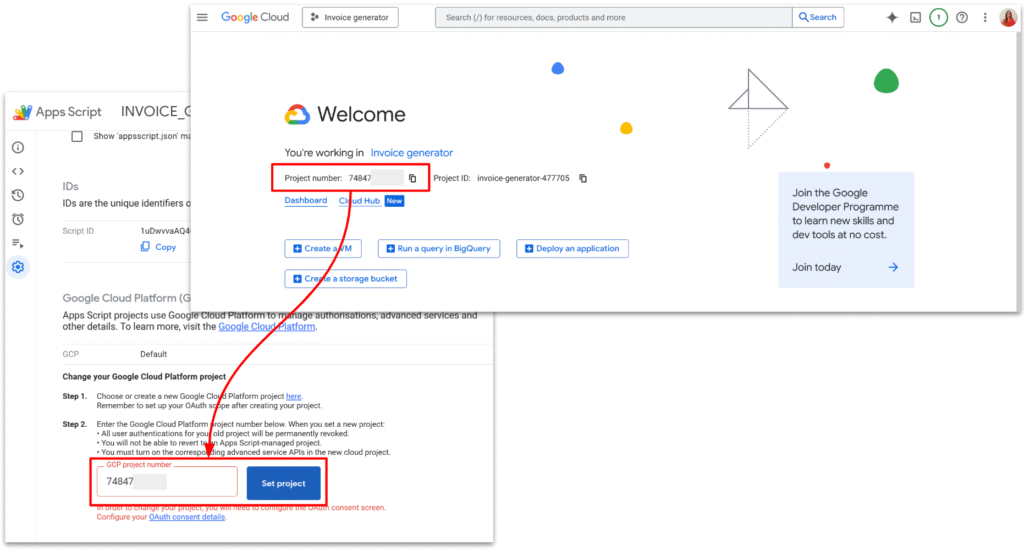
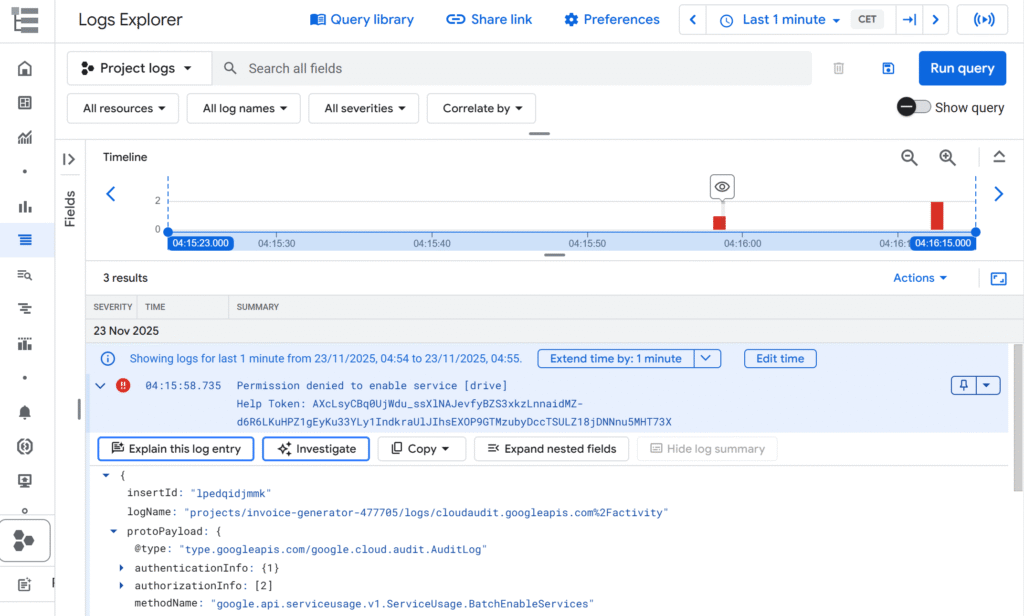
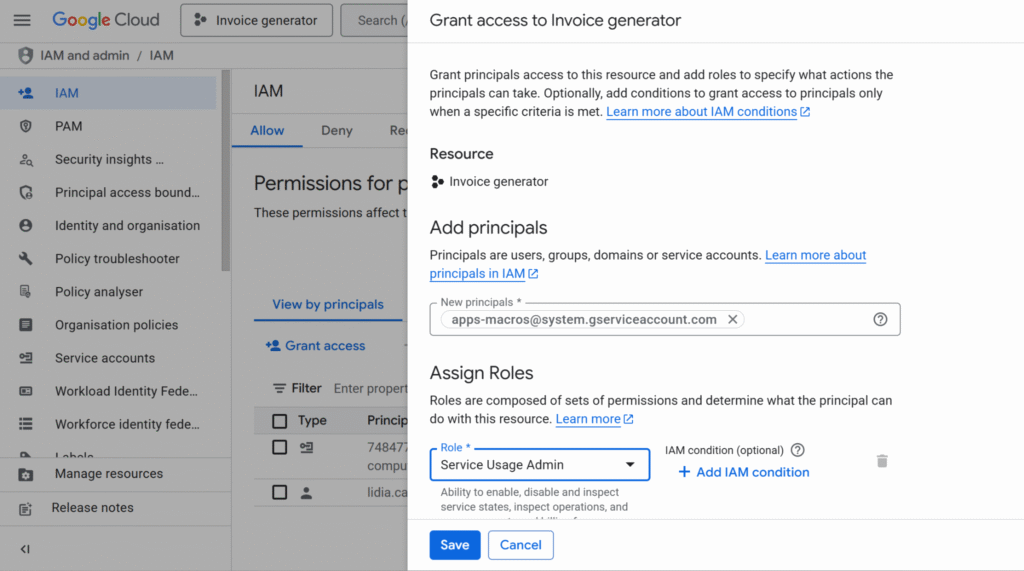
When your Apps Script project is linked to a standard Google Cloud project, your logs can be viewed in Google Cloud’s Logs Explorer instead of only in the Apps Script interface. That gives you much better filtering, longer-term visibility, and access to tools like Error Reporting and log-based metrics. (Google Cloud projects)
You can use a single GCP project for several Apps Script projects
This becomes especially useful for web apps. Instead of scanning plain text logs manually, you can search by severity, message, or your own custom fields such as requestId, route, or event. (Logging query language)
Another very useful feature is the temporary active user key. Google recommends using it to correlate logs to a user session without storing personal data like email addresses. (feedbackLogging)
What a production-style logging system looks like
A good logging system in Apps Script does not need to be complicated. It just needs structure.
The main idea is that every important action should be logged with context. Instead of writing random messages like "step 1" or "here", it is much better to log a clear event with fields such as:
event, requestId, route, userKey, severity, and a small context object.
That gives you logs that are easier to read and much easier to query later in Cloud Logging.
A strong approach is to use Logger for business events and console.time() for performance tracking. That gives you both structured logs and timing data without mixing everything together. (Class Logger)
A simple production-ready logging utility
Here is a practical example you can reuse in an Apps Script web app:
/**
 * Create a request-scoped logging context.
 *
 * @param {Object} options
 * @param {string} options.route
 * @param {string=} options.requestId
 * @param {Object=} options.context
 * @returns {{route: string, requestId: string, userKey: string, context: Object}}
 */
function createLogContext(options) {
  return {
    route: options.route || "unknown",
    requestId: options.requestId || Utilities.getUuid(),  // To track that one request in Cloud Logging
    userKey: Session.getTemporaryActiveUserKey(),
    context: options.context || {}
  };
}

/**
 * Write a structured application log.
 *
 * @param {string} message
 * @param {Object} details
 * @param {string} details.event
 * @param {string=} details.severity
 * @param {string} details.route
 * @param {string} details.requestId
 * @param {string} details.userKey
 * @param {Object=} details.context
 * @returns {void}
 */
function logEvent(message, details) {
  Logger.log({
    message,
    event: details.event,
    severity: details.severity || "INFO",
    route: details.route,
    requestId: details.requestId,
    userKey: details.userKey,
    context: details.context || {},
    timestamp: new Date().toISOString()
  });
}

/**
 * Write a structured error log.
 *
 * @param {Error} error
 * @param {Object} details
 * @param {string} details.route
 * @param {string} details.requestId
 * @param {string} details.userKey
 * @param {Object=} details.context
 * @returns {void}
 */
function logError(error, details) {
  Logger.log({
    message: error.message || "Unknown error",
    event: "application_error",
    severity: "ERROR",
    route: details.route,
    requestId: details.requestId,
    userKey: details.userKey,
    context: details.context || {},
    name: error.name || "Error",
    stack: error.stack || "",
    timestamp: new Date().toISOString()
  });

  console.error(error);
}
This kind of utility already makes a big difference. It gives each request a consistent identity and makes logs much easier to follow.
What to log
For a deployed Apps Script web app, the most useful logs are usually the start of a request, the main business event, the final result, the duration of slow steps, and any real error.
What you should avoid is logging huge payloads, full spreadsheet rows, or personal data. Logs should stay useful, readable, and lightweight. Google also documents limits and quotas for Cloud Logging, so smaller structured logs are usually the better choice. (Quotas and limits)
The real best practice
The best practice is not choosing between console and Logger as if one were always better.
Use console for quick debugging and timing. Use Logger for structured events. Use Cloud Logging when the project becomes important enough to need real visibility. Then, if needed, turn recurring log patterns into metrics and alerts. (Log-based metrics overview)
That is the point where logging in Apps Script becomes genuinely useful for production, especially for web apps.