
What is the Debugger?
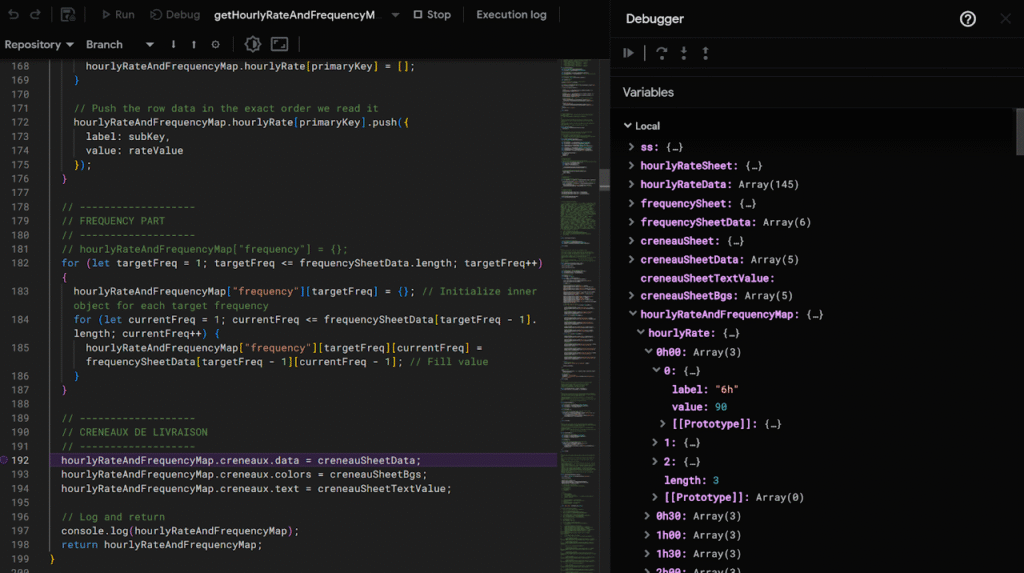
The Apps Script debugger lets you pause your code at any point and step through it line-by-line to see what’s really happening. You can inspect variables, monitor execution flow, and identify exactly where your script is misbehaving.
How to Use the Debugger
- Open the script editor
- Click on the bug icon 🐞 next to the function you want to debug
- Optionally, add breakpoints (ctrl + b)
- Press the Debug button
You can explore every variable, global or scoped, and inspect your data in real time.
Personally, I rely on the debugger while coding, especially when working on complex mapping algorithms. It’s a game-changer for understanding what’s happening under the hood.
Pro tip! If the function you want to debug relies on a trigger (like onEdit or onFormSubmit), you can build mock data to simulate the event and test your code manually.
function testOnEdit() {
  const mockEvent = {
    range: SpreadsheetApp.getActiveSheet().getRange("B2"),
    value: "test value",
    source: SpreadsheetApp.getActiveSpreadsheet()
  };

  onEdit(mockEvent);
}