
Ever needed to prepare a contract, a template, or a letter where you just replace placeholders like [Client Name] or [Date] with real values?
Instead of manually editing each tag, we can automate the process with Google Apps Script.
This article shows you how to:
- Add placeholders in your document
- Replace them with real values in one click
- Keep your templates clean and reusable
Why use placeholders?
Placeholders are short markers inside your document that can later be replaced with actual content.
For example:
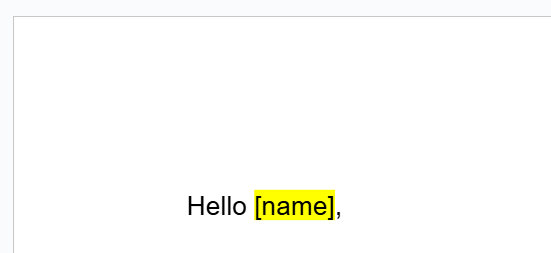
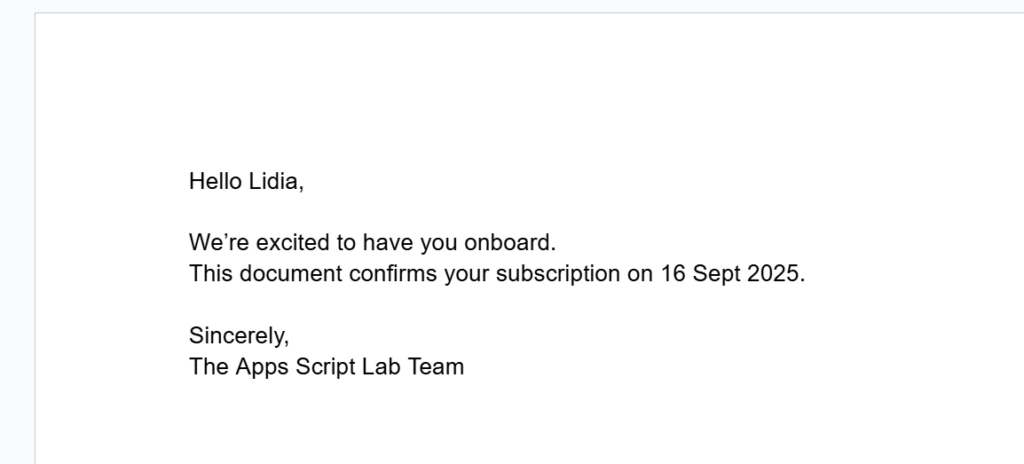
With Apps Script, you can easily replace [name] with “Lidia”, or any other dynamic value from a sheet, a form, or an API.
Step 1 – Prepare your Google Docs
Open a new Google Docs file, or write docs.new in your search bar, and write some sample content with tags between square brackets [ ].
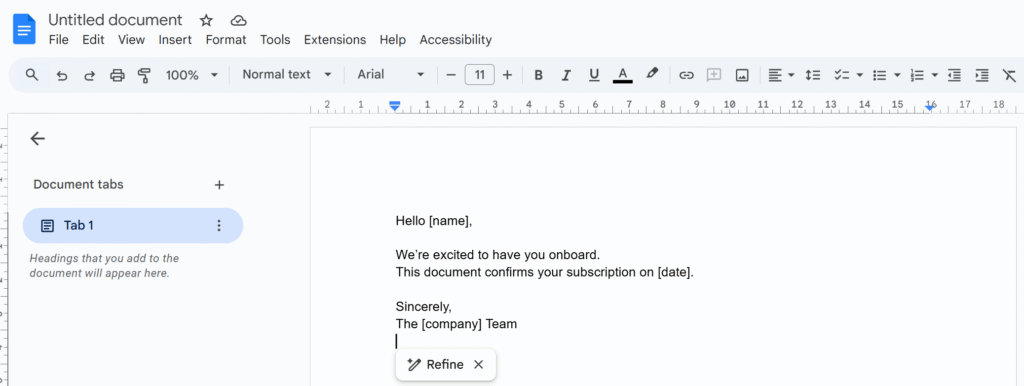
Step 2 – Open the Script Editor
- In your Google Doc, go to Extensions → Apps Script

2. Delete the default code and paste the following function:
function replaceAllPlaceholders() {
  const body = DocumentApp.getActiveDocument()
    .getActiveTab()
    .asDocumentTab()
    .getBody();

  const replacements = {
    '\\[.*name.*\\]': 'Lidia',
    '\\[.*date.*\\]': '16 Sept 2025',
    '\\[.*company.*\\]': 'Apps Script Lab'
  };

  for (let tag in replacements) {
    body.replaceText(tag, replacements[tag]);
  }
}
You can adapt the placeholders to match whatever data you need to inject.
Each occurrence of the placeholder will be swapped automatically using the replaceText() method.
Keep in mind: the function expects a regular expression as the search patter
Let’s make our template reusable
In this first example, we simply replaced the placeholders directly in the document.
But if you need to generate multiple documents while keeping your original file intact, it’s better to create a copy of the template and run the replacements in the copy.
/**
 * Creates a copy of the active Google Doc,
 * replaces placeholders in the copy,
 * and returns the URL of the generated document.
 */
function generateDocFromTemplate() {
  // Define placeholder values
  const replacements = {
    '\\[.*name.*\\]': 'Lidia',
    '\\[.*date.*\\]': '16 Sept 2025',
    '\\[.*company.*\\]': 'Apps Script Lab'
  };

  // Get the template (active document)
  const templateDoc = DocumentApp.getActiveDocument();
  const templateFile = DriveApp.getFileById(templateDoc.getId());

  // Create a copy next to the original
  const copyFile = templateFile.makeCopy(
    templateFile.getName() + ' - Generated ' + new Date().toISOString().slice(0, 10),
    templateFile.getParents().next() // same folder
  );

  // Open the copy for editing
  const copyDoc = DocumentApp.openById(copyFile.getId());
  const body = copyDoc.getBody();

  // Replace all placeholders
  for (let tag in replacements) {
    body.replaceText(tag, replacements[tag]);
  }

  // Save & close
  copyDoc.saveAndClose();

  // Return the URL (for logs or UI)
  Logger.log('Generated doc: ' + copyFile.getUrl());
  return copyFile.getUrl();
}
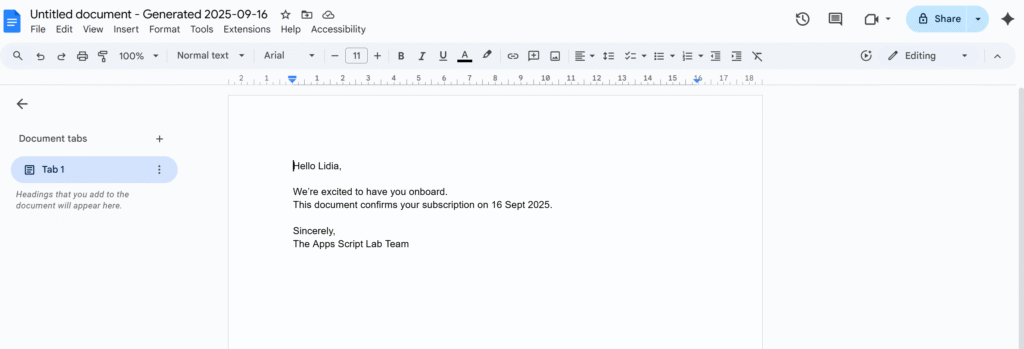
The script will create a new document based on your template.
Your original file remains untouched, and the placeholders are replaced only in the generated copy.
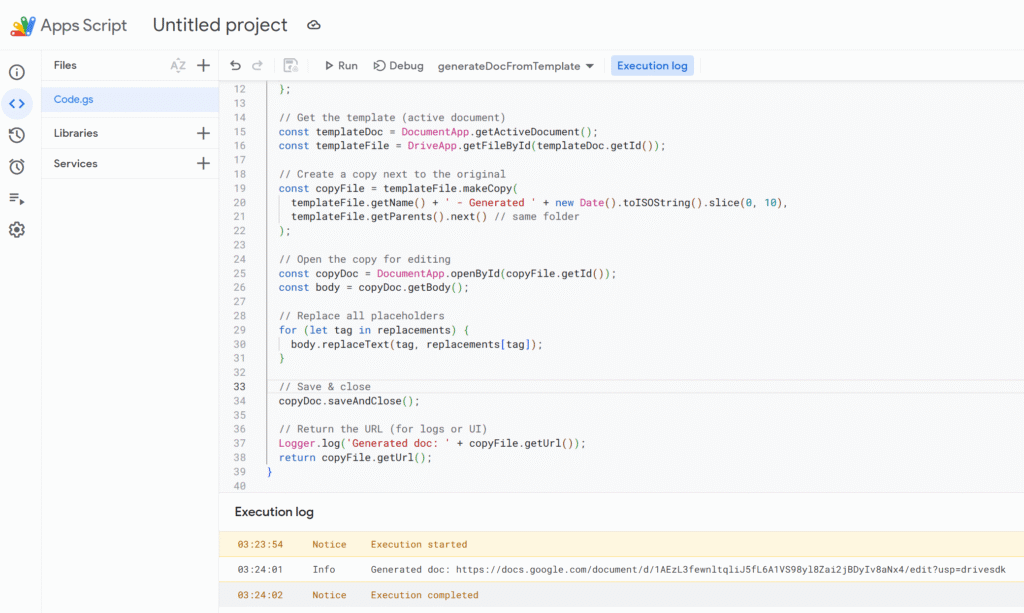
Much cleaner than editing manually, and your template is always safe for the next run.
Next Steps
In this tutorial, we learned how to:
- Use placeholders in a Google Doc
- Replace them automatically with Apps Script
- Keep our original template safe by generating copies
The natural next step is to connect this process with Google Sheets.
That way, you can store your tags and values in a spreadsheet (e.g. [name], [date], [company]), run the script for each row, and automatically log the links to the generated documents back into the sheet.
This turns your simple template into a full document generation system