OAuth with Google Apps Script

One of the biggest strengths of Google Apps Script is how easily it interacts with other Google products. Reading a Google Sheet, creating a Drive file, or updating a document requires almost no setup. You don’t have to think about authentication, token management, or security flows. Google automatically prompts the required scopes and takes care of the authorization for you.
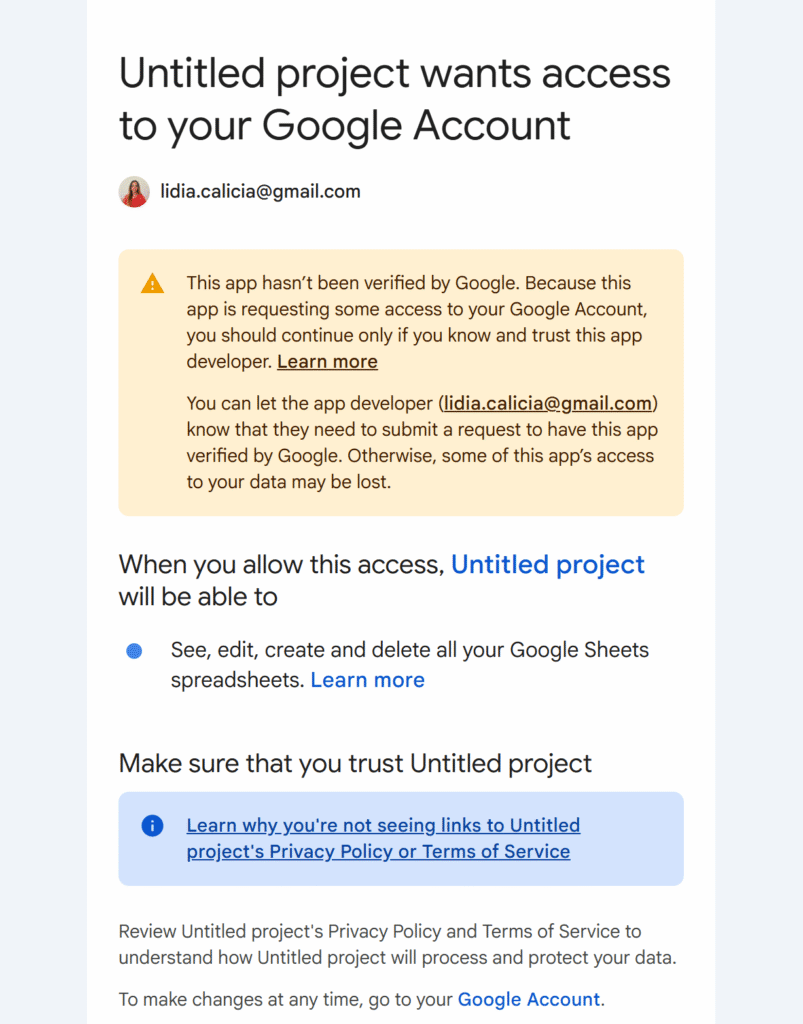
This convenience can make OAuth feel invisible, even unnecessary. Until the day your script needs to talk to something outside Google.

This article takes a step back to explain what OAuth and OAuth 2.0 actually are, why Apps Script usually hides them from you, and what changes when you integrate external services. We’ll also look at how the OAuth2 library fits into the picture when built-in authorization is no longer enough.

OAuth in simple terms

OAuth 2.0 allows an application to access a user’s data without ever handling their password. Instead of sharing credentials, the user approves a limited set of permissions, and the service issues a token representing what the application is allowed to do and for how long.

In an OAuth flow, the user authenticates directly with the service that owns the data. Once consent is given, the service provides a token to the application. From that point on, the application uses this token to make requests, and the service validates it before allowing access. The application never sees the user’s credentials.

OAuth 2.0 is an evolution of the original OAuth concept. It formalizes this permission model using short-lived access tokens and refresh tokens, making integrations more secure, easier to revoke, and better suited to modern applications. Today, when we talk about OAuth, we almost always mean OAuth 2.0.

OAuth in Apps Script

When an Apps Script project interacts only with Google products, OAuth is handled entirely by the platform. Permissions are inferred from the services you use, Google displays the consent screen, and tokens are stored and refreshed automatically. In this context, we don’t really htink about OAuth at all.

You can see the project scopes in the information panel
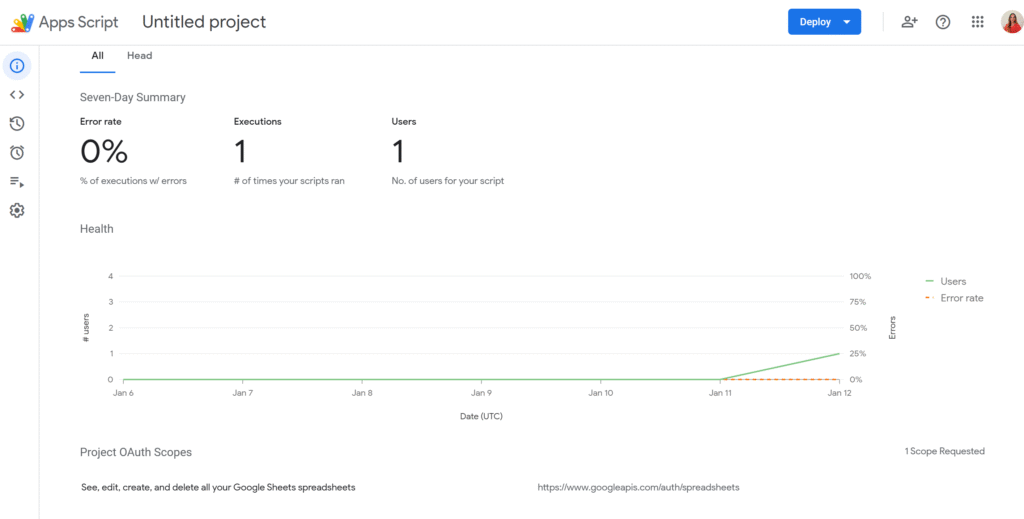
This changes as soon as your script needs to communicate with a service outside Google.

Most external APIs rely on OAuth 2.0, which means your script must explicitly request user consent, obtain access tokens, refresh them when they expire, and attach them to API requests. At this point, OAuth is no longer automatic and becomes part of your implementation.

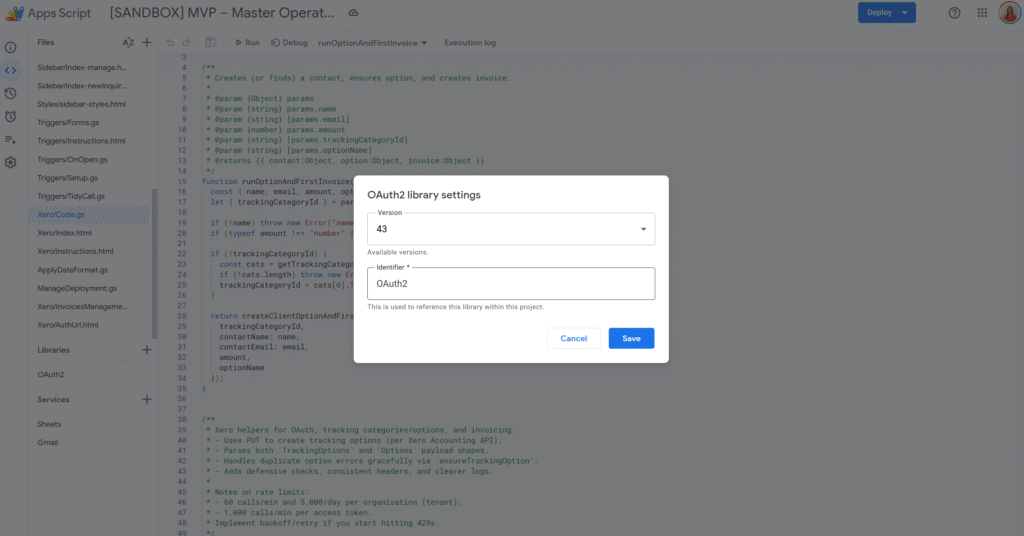
To make this manageable, Apps Script relies on a community OAuth2 library. The library implements the OAuth 2.0 protocol for you, handling redirects, callbacks, token exchanges, storage, and refresh logic. You configure it once, then reuse it whenever your script needs to authenticate with the external API.

How the OAuth2 library works in Apps Script

The OAuth2 library revolves around the idea of a service. A service represents a configured OAuth connection to an external provider. It contains everything needed to authenticate with that API:

  • Authorization URL
    This is the endpoint where the user is redirected to grant consent. It displays the provider’s login and consent screen and is the entry point of the OAuth flow.
  • Token endpoint
    This endpoint is used after consent is granted. It exchanges the authorization code for an access token (and usually a refresh token), and is also used later to refresh expired access tokens.
  • Client credentials (Client ID and Client Secret)
    These identify your Apps Script project to the OAuth provider. They are issued when you register your application and allow the provider to trust who is requesting tokens.
  • Requested scopes
    Scopes define what the application is allowed to do. They limit access to specific actions or resources and are shown to the user on the consent screen.
  • Callback function
    This is the function Apps Script calls after the provider redirects back to your project. It completes the OAuth flow by handing the response to the library, which then retrieves and stores the tokens.
  • Property store
    This defines where access and refresh tokens are persisted. The service uses PropertiesService to store tokens so the user does not need to re-authorize on every execution.

In short, the service is the OAuth contract between Apps Script and an external provider. Once configured, your code no longer deals with OAuth mechanics directly, it simply asks the service for a valid access token and makes API requests.

A short example

The first step is to add the OAuth2 library to your Apps Script project. This can be done by searching for the library using its script ID:

1B7FSrk5Zi6L1rSxxTDgDEUsPzlukDsi4KGuTMorsTQHhGBzBkMun4iDF
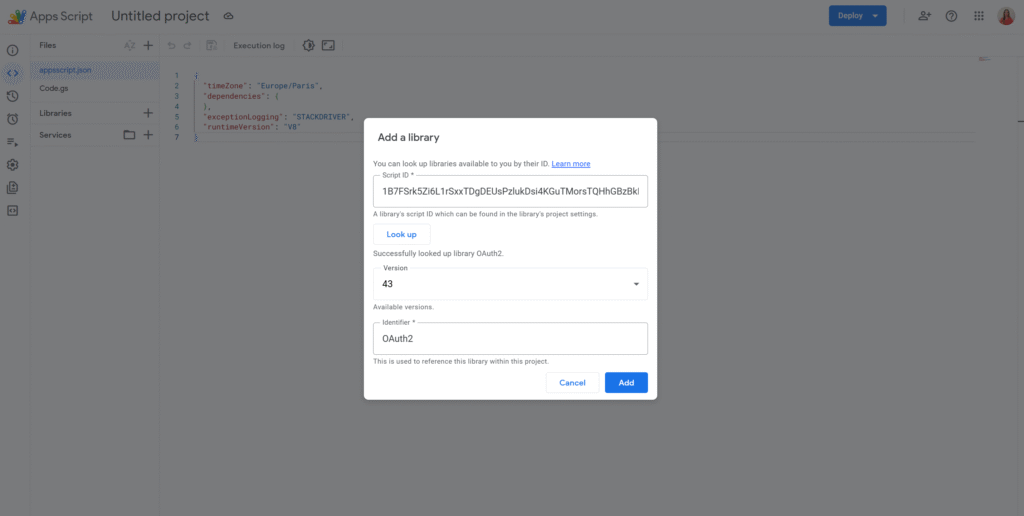
Now, let’s see a very simple example of

/**
 * Creates and returns the OAuth2 service.
 * @returns {OAuth2.Service}
 */
function getService_() {
  return OAuth2.createService('MyApi')

    // Authorization and token endpoints provided by the API
    .setAuthorizationBaseUrl('https://example.com/oauth/authorize')
    .setTokenUrl('https://example.com/oauth/token')

    // Credentials issued by the provider
    .setClientId('YOUR_CLIENT_ID')
    .setClientSecret('YOUR_CLIENT_SECRET')

    // Callback function called after user consent
    .setCallbackFunction('authCallback')

    // Where tokens are stored
    .setPropertyStore(PropertiesService.getUserProperties())

    // Permissions requested
    .setScope('read write');
}

Apps Script cannot redirect automatically, so you typically show the authorization URL as a link.

/**
 * Shows an authorization link if access is missing.
 */
function authorize() {
  const service = getService_();

  if (!service.hasAccess()) {
    const url = service.getAuthorizationUrl();
    Logger.log('Authorize this app by visiting: %s', url);
  }
}

This function is called by Apps Script when the provider redirects back after consent.

/**
 * OAuth callback handler.
 * @param {Object} request
 * @returns {HtmlOutput}
 */
function authCallback(request) {
  const service = getService_();
  const authorized = service.handleCallback(request);

  return HtmlService.createHtmlOutput(
    authorized ? 'Authorization successful.' : 'Authorization denied.'
  );
}

Once authorized, the library automatically returns a valid token and refreshes it if needed.

/**
 * Makes an authenticated API request.
 */
function callApi() {
  const service = getService_();

  if (!service.hasAccess()) {
    throw new Error('Service not authorized');
  }

  const response = UrlFetchApp.fetch('https://example.com/api/data', {
    headers: {
      Authorization: 'Bearer ' + service.getAccessToken()
    }
  });

  Logger.log(response.getContentText());
}

Conclusion

OAuth can feel complex at first, but in practice it follows a simple idea: allowing an application to act on behalf of a user without ever handling their credentials. In Google Apps Script, this complexity is often hidden when working with Google services, which is why OAuth can go unnoticed for a long time.

As soon as you integrate an external API, OAuth becomes explicit. The OAuth2 library provides a structured and reliable way to handle authorization, token storage, and refresh logic, without forcing you to reimplement the OAuth 2.0 protocol yourself. Once the service is configured, the rest of your code can focus purely on business logic and API interactions.

To go further, see the follow-up article with a complete OAuth2 implementation in Apps Script using Xero.
Automatically import Xero bills into Google Sheets (Google Apps Script + OAuth2)

If you use Xero and Google Sheets on a daily basis, this automation tutorial is for you. In this post, you’ll learn how to automatically sync your Xero bills into a Google Sheet on a schedule, so your spending table stays up to date without copy-pasting.

We’ll build it in a production-friendly way: OAuth2 authorization (so Xero can securely grant access), safe credential storage in Apps Script, a sync function that writes into your sheet, and refresh tokens (via offline_access) so the automation keeps running long-term.

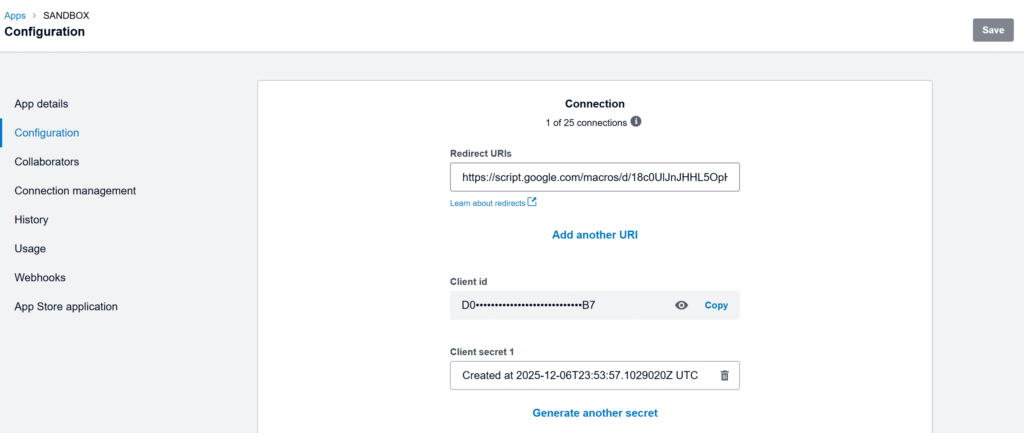
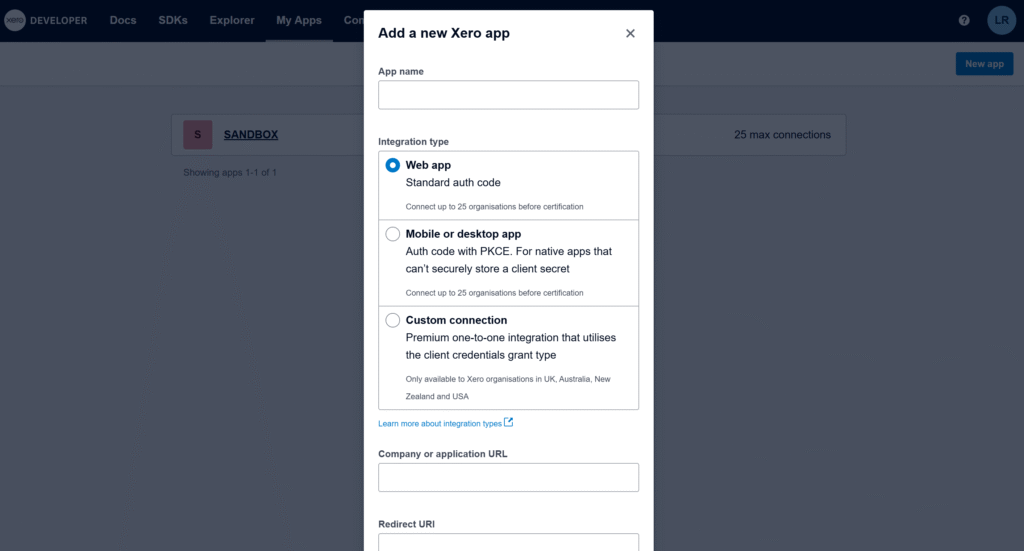
Create a Xero OAuth2 app

Create a Xero OAuth2 app in the Xero Developer portal and choose the web app / Standard auth code type (the standard flow Xero documents for third-party apps). The standard authorization code flow

The most important field is Redirect URI. Xero requires an exact, absolute redirect URI (no wildcards), so we will need the exact callback URL generated by your Apps Script project. Xero API – OAuth 2.0

Get a temporary redirect URI to create the app

In Apps Script, the OAuth2 library can generate the exact redirect URI for this project. Run the function below, copy the URL from the logs, and paste it into your Xero app settings to finish creating the app.

/**
 * Logs the Redirect URI you must paste into your Xero app settings.
 * This does NOT require Client ID/Secret.
 *
 * @returns {void}
 */
function logXeroRedirectUri() {
  const service = OAuth2.createService('Xero')
    .setCallbackFunction('xeroAuthCallback');
  Logger.log(service.getRedirectUri());
}

/**
 * OAuth callback endpoint (stub is fine for this step).
 * @param {Object} e
 * @returns {GoogleAppsScript.HTML.HtmlOutput}
 */
function xeroAuthCallback(e) {
  return HtmlService.createHtmlOutput('Callback ready.');
}

The Apps Script OAuth2 library is the standard way to handle OAuth consent and token refresh in Apps Script. (Link to the setup guide here).

Get and store Client ID / Client Secret in Script Properties

Once the app is created, copy the Client ID and Client Secret. You’ll need them in Apps Script to complete the OAuth flow.

Store only the Client ID and Client Secret in Script Properties. OAuth tokens are user-specific, so we store them in User Properties via the OAuth2 library’s property store.

const XERO_PROPS_ = {
  clientId: 'XERO_CLIENT_ID',
  clientSecret: 'XERO_CLIENT_SECRET',
  lastSyncIso: 'XERO_BILLS_LAST_SYNC_ISO',
};

/**
 * Saves Xero app credentials to Script Properties.
 * @param {string} clientId
 * @param {string} clientSecret
 * @returns {void}
 */
function saveXeroCredentials_(clientId, clientSecret) {
  PropertiesService.getScriptProperties()
    .setProperty(XERO_PROPS_.clientId, clientId)
    .setProperty(XERO_PROPS_.clientSecret, clientSecret);
}

/**
 * Reads Xero app credentials from Script Properties.
 * @returns {{clientId: string, clientSecret: string}}
 */
function getXeroCredentials_() {
  const props = PropertiesService.getScriptProperties();
  const clientId = props.getProperty(XERO_PROPS_.clientId) || '';
  const clientSecret = props.getProperty(XERO_PROPS_.clientSecret) || '';
  if (!clientId || !clientSecret) throw new Error('Missing Xero credentials in Script Properties.');
  return { clientId, clientSecret };
}

Replace the temporary callback with the real OAuth service + callback

Now that we have Client ID/Secret stored, we can build the real OAuth service and the real callback that stores tokens.

Important: tokens are user-specific, so we store them in User Properties via .setPropertyStore(PropertiesService.getUserProperties()).

Let’s replace the previous xeroAuthCallback() with this version:

/**
 * Creates and returns the OAuth2 service configured for Xero.
 * Client ID/Secret are in Script Properties; OAuth tokens are stored per-user in User Properties.
 *
 * @returns {OAuth2.Service}
 */
function getXeroService_() {
  const { clientId, clientSecret } = getXeroCredentials_();

  return OAuth2.createService('Xero')
    .setAuthorizationBaseUrl('https://login.xero.com/identity/connect/authorize')
    .setTokenUrl('https://identity.xero.com/connect/token')
    .setClientId(clientId)
    .setClientSecret(clientSecret)
    .setCallbackFunction('xeroAuthCallback')
    .setPropertyStore(PropertiesService.getUserProperties())
    .setCache(CacheService.getUserCache())
    .setLock(LockService.getUserLock())
    .setScope([
      'openid',
      'profile',
      'email',
      'offline_access',
      'accounting.transactions',
    ].join(' '))
    .setTokenHeaders({
      Authorization: 'Basic ' + Utilities.base64Encode(`${clientId}:${clientSecret}`),
    });
}

/**
 * OAuth callback endpoint called by Xero after consent.
 * This stores the access token + refresh token in the OAuth2 property store.
 *
 * @param {Object} e
 * @returns {GoogleAppsScript.HTML.HtmlOutput}
 */
function xeroAuthCallback(e) {
  const service = getXeroService_();
  const ok = service.handleCallback(e);
  return HtmlService.createHtmlOutput(ok ? 'Success! You can close this tab.' : 'Denied');
}

Authorize once

This is a one-time consent step: generate the authorization URL, open it in your browser, click Allow, then Xero redirects back to xeroAuthCallback() to finalize the connection.

You must request offline_access to receive a refresh token. Xero Developer – Offline access
Xero’s docs also note refresh tokens expire after a period (so if the integration stops running for too long, you may need to re-authorize).

/**
 * Returns the Xero consent screen URL. Open it and approve access.
 *
 * @returns {string}
 */
function getXeroAuthorizationUrl_() {
  const service = getXeroService_();
  return service.getAuthorizationUrl();
}

/**
 * Logs the authorization URL in Apps Script logs.
 *
 * @returns {void}
 */
function logXeroAuthorizationUrl_() {
  Logger.log(getXeroAuthorizationUrl_());
}

Run logXeroAuthorizationUrl_(), copy the logged URL, open it, and approve access. After that, your script can call Xero without prompting again.

Sync bills into Sheets (then add a trigger)

Xero is multi-tenant: first call the Connections endpoint to get a tenantId, then include xero-tenant-id in every API request. For incremental sync, use the If-Modified-Since header so each run only pulls bills modified since your last sync timestamp.

const XERO_API_BASE_ = 'https://api.xero.com/api.xro/2.0';
const XERO_BILLS_SHEET_ = 'Xero Bills';

/**
 * Resolves the active tenant ID from Xero connections.
 *
 * @param {OAuth2.Service} service
 * @returns {string}
 */
function getXeroTenantId_(service) {
  const res = UrlFetchApp.fetch('https://api.xero.com/connections', {
    method: 'get',
    headers: { Authorization: `Bearer ${service.getAccessToken()}` },
    muteHttpExceptions: true,
  });

  if (res.getResponseCode() !== 200) {
    throw new Error(`Failed to resolve tenant. ${res.getResponseCode()} — ${res.getContentText()}`);
  }

  const tenants = JSON.parse(res.getContentText());
  const tenantId = tenants?.[0]?.tenantId;
  if (!tenantId) throw new Error('No tenant connected to this token.');
  return tenantId;
}

/**
 * Performs a JSON request to Xero with common headers.
 *
 * @param {"get"|"post"|"put"|"delete"} method
 * @param {string} url
 * @param {Object|null} body
 * @param {{ ifModifiedSinceIso?: string }} [opts]
 * @returns {{code: number, text: string, json?: Object}}
 */
function xeroJsonRequest_(method, url, body, opts = {}) {
  const service = getXeroService_();
  if (!service.hasAccess()) throw new Error('Xero access not granted. Run the authorization flow first.');

  const tenantId = getXeroTenantId_(service);

  /** @type {GoogleAppsScript.URL_Fetch.URLFetchRequestOptions} */
  const options = {
    method,
    headers: {
      Authorization: `Bearer ${service.getAccessToken()}`,
      'xero-tenant-id': tenantId,
      Accept: 'application/json',
      ...(opts.ifModifiedSinceIso ? { 'If-Modified-Since': opts.ifModifiedSinceIso } : {}),
    },
    muteHttpExceptions: true,
  };

  if (body != null) {
    options.contentType = 'application/json';
    options.payload = JSON.stringify(body);
  }

  const res = UrlFetchApp.fetch(url, options);
  const code = res.getResponseCode();
  const text = res.getContentText();

  let json;
  try {
    json = text ? JSON.parse(text) : undefined;
  } catch (e) {}

  return { code, text, json };
}

/**
 * Returns ACCPAY invoices (bills) from Xero.
 *
 * @param {{ ifModifiedSinceIso?: string }} [params]
 * @returns {Array<Object>}
 */
function listBills_(params = {}) {
  const where = encodeURIComponent('Type=="ACCPAY"');
  const url = `${XERO_API_BASE_}/Invoices?where=${where}`;

  const { code, text, json } = xeroJsonRequest_('get', url, null, {
    ifModifiedSinceIso: params.ifModifiedSinceIso,
  });

  if (code !== 200) throw new Error(`Failed to list bills. ${code} — ${text}`);
  return /** @type {Array<Object>} */ (json?.Invoices || []);
}

/**
 * Upserts bills into a sheet using InvoiceID as the key.
 *
 * @param {SpreadsheetApp.Sheet} sheet
 * @param {Array<Object>} bills
 * @returns {void}
 */
function upsertBillsToSheet_(sheet, bills) {
  const headers = [
    'InvoiceID',
    'InvoiceNumber',
    'ContactName',
    'Status',
    'Date',
    'DueDate',
    'CurrencyCode',
    'Total',
    'AmountDue',
    'UpdatedDateUTC',
  ];

  const current = sheet.getDataRange().getValues();
  if (!current.length || current[0].join() !== headers.join()) {
    sheet.clear();
    sheet.getRange(1, 1, 1, headers.length).setValues([headers]);
  }

  const data = sheet.getDataRange().getValues();
  /** @type {Map<string, number>} */
  const rowById = new Map();

  for (let r = 2; r <= data.length; r++) {
    const id = String(data[r - 1][0] || '');
    if (id) rowById.set(id, r);
  }

  const rowsToAppend = [];

  bills.forEach(b => {
    const row = [
      b.InvoiceID || '',
      b.InvoiceNumber || '',
      b.Contact?.Name || '',
      b.Status || '',
      b.Date || '',
      b.DueDate || '',
      b.CurrencyCode || '',
      b.Total ?? '',
      b.AmountDue ?? '',
      b.UpdatedDateUTC || '',
    ];

    const invoiceId = String(b.InvoiceID || '');
    const existingRow = rowById.get(invoiceId);

    if (existingRow) {
      sheet.getRange(existingRow, 1, 1, headers.length).setValues([row]);
    } else {
      rowsToAppend.push(row);
    }
  });

  if (rowsToAppend.length) {
    sheet.getRange(sheet.getLastRow() + 1, 1, rowsToAppend.length, headers.length).setValues(rowsToAppend);
  }
}

/**
 * Main sync: pulls bills changed since last sync and writes them into Google Sheets.
 *
 * @returns {void}
 */
function syncXeroBillsToSheet() {
  const ss = SpreadsheetApp.getActiveSpreadsheet();
  const sheet = ss.getSheetByName(XERO_BILLS_SHEET_) || ss.insertSheet(XERO_BILLS_SHEET_);

  const props = PropertiesService.getScriptProperties();
  const lastSyncIso = props.getProperty(XERO_PROPS_.lastSyncIso) || '';

  const bills = listBills_({ ifModifiedSinceIso: lastSyncIso || undefined });
  upsertBillsToSheet_(sheet, bills);

  props.setProperty(XERO_PROPS_.lastSyncIso, new Date().toISOString());
}

/**
 * Creates an hourly time-driven trigger for syncXeroBillsToSheet().
 *
 * @returns {void}
 */
function installXeroBillsTrigger_() {
  ScriptApp.newTrigger('syncXeroBillsToSheet')
    .timeBased()
    .everyHours(1)
    .create();
}

A clean first run is: save credentials → run logXeroAuthorizationUrl_() and approve → run syncXeroBillsToSheet() once → run installXeroBillsTrigger_() to automate the sync.


You can now install a simple time-driven trigger on syncXeroBillsToSheet() to keep your spreadsheet up to date automatically. From here, it’s easy to adapt the same structure to pull other Xero data: switch from bills (ACCPAY) to sales invoices (ACCREC), filter only paid documents, or add extra columns depending on what you want to analyse.

Google Apps Script Cache Service: What It Is and When You Should Use It

Even if I’m a real advocate of Apps Script, I’m also very aware of its limits when it comes to performance.

When a script keeps fetching the same API data or repeatedly processes large spreadsheets, things slow down fast. Each execution feels heavier than the previous one, and you end up wasting both user time and valuable API quota.
Caching solves this problem by avoiding unnecessary work.

In this article, we’ll walk through what a cache actually is, how the Cache Service works in Apps Script, and the situations where it makes a real difference.

What’s a Cache?

A cache is simply a temporary storage area that keeps data ready to use.
Instead of computing something again or fetching it every time, you store the result once, and reuse it for a short period.

For example, imagine calling an external API that takes half a second to respond. If you cache the result for five minutes, the next calls come back instantly. The data isn’t stored forever, just long enough to avoid waste.

This principle is everywhere in tech: browsers, databases, CDNs… and Google Apps Script has its own version too.

What Is Cache Service in Apps Script?

The Cache Service in Google Apps Script gives you a small, fast place to store temporary data. It comes in three “scopes” depending on your use case:

  • Data shared across all users of your script (getScriptCache)
  • Data specific to the current user (getUserCache)
  • Data linked to a particular document (getDocumentCache)

It only stores strings, which means that objects need to be serialized (JSON.stringify). The storage is also limited in size and duration: up to 100 KB per key, and a lifetime of up to 6 hours.

It’s not meant to replace a database or a sheet, it’s meant to speed up your script by avoiding repetitive or heavy work.

When Should You Use It?

Speeding up repeated API calls

If your script fetches data from GitLab, Xero, or any third-party API, calling that API every time is unnecessary. The Cache Service is ideal for storing the latest response for a few minutes. Your script becomes faster, and you avoid hitting rate limits.

Avoiding expensive spreadsheet reads

Large spreadsheets can be slow to read. If you always transform the same data (for example: building a dropdown list, preparing a JSON structure, or filtering thousands of rows), caching the processed result saves a lot of execution time.

Making HTMLService UIs feel instant

Sidebars and web apps built with HTMLService often reload data each time they open. If that data doesn’t need to be fresh every second, keeping it in cache makes the UI load instantly and improves the user experience noticeably.

Storing lightweight temporary state

For short-lived information—like a user’s last selected filter or a temporary calculation—Cache Service is much faster than PropertiesService, and avoids writing into Sheets unnecessarily.

A Simple Way to Use Cache Service

You can create a small helper function that retrieves data from the cache when available, or stores it if missing:

/**
 * Returns cached data or stores a fresh value if missing.
 * @param {string} key
 * @param {Function} computeFn Function that generates fresh data
 * @param {number} ttlSeconds Cache duration in seconds
 * @return {*} Cached or fresh data
 */
function getCached(key, computeFn, ttlSeconds = 300) {
  const cache = CacheService.getScriptCache();
  const cached = cache.get(key);
  if (cached) return JSON.parse(cached);

  const result = computeFn();
  cache.put(key, JSON.stringify(result), ttlSeconds);
  return result;
}

And use it like this:

function getProjects() {
  return getCached('gitlab_projects', () => {
    const res = UrlFetchApp.fetch('https://api.example.com/projects');
    return JSON.parse(res.getContentText());
  });
}

This approach is enough to dramatically speed up most Apps Script projects.

Final Thoughts

The Cache Service is small, simple, but incredibly effective if used well. It won’t store long-term data and it won’t replace a database, but for improving performance and reducing unnecessary work, it’s one of the easiest optimizations you can add to an Apps Script project.

If you want, I can help you write a second article with more advanced techniques: cache invalidation, dynamic keys, TTL strategies, and UI refresh patterns.

Turn an Apps Script project into an API (and Test It with Postman)

I’ve been doing freelancing for 5+ years now. Every month, I’d add a new row in my follow-up spreadsheet, duplicate my invoice, and export it as PDF to send by email. Yes, manually.

In French we say: “les cordonniers sont toujours les plus mal chaussés”. (or “the cobbler’s children go barefoot” in English).

Well I’ve decided this has to stop, and I’ve been working on a custom SaaS to handle my invoices in a proper way! Backend runs on Cloud Run, the UI is a simple web app. And for the invoice document generation itself… I’m using Apps Script!

In this article, I’ll focus on the Apps Script project itself, and its deployment so that it can be called from another app or from Postman to start with.

The connection with the SaaS itself will be for another article!

Why use Apps Script as an API?

You get a lot for free!

  • Google Docs is your template engine (layout, fonts, logo… all in the editor)
  • Drive stores your invoices in the right folder
  • Apps Script can run as you and use your Drive/Docs permissions
  • You get an HTTP endpoint that your backend (or Postman) can POST JSON to

Also, my entire blog is about Apps Script, so…

So the main idea in our example is:

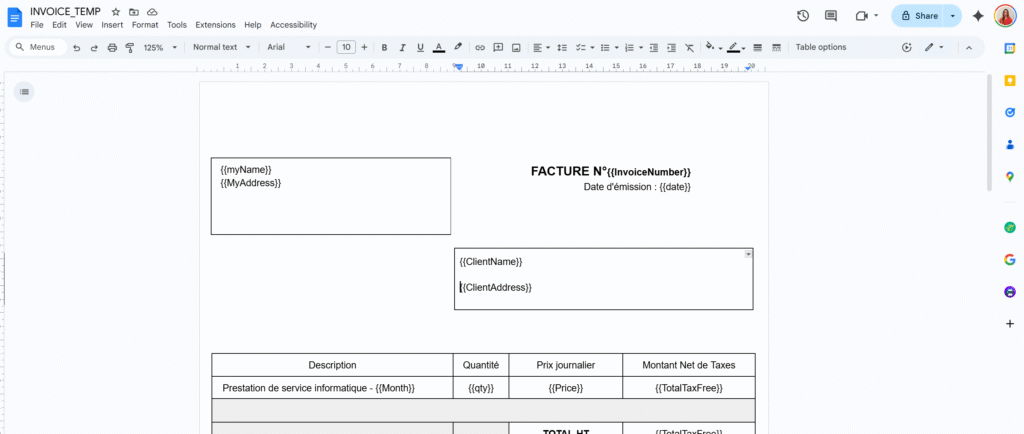
  1. Have a Docs template with placeholders like {{ClientName}}, {{TotalPrice}}.
  2. Send a JSON payload to a Web App URL.
  3. Apps Script copies the template, replaces the tags, and returns the document URL.

No custom PDF rendering, no extra infra.

The Apps Script “Invoice API” code

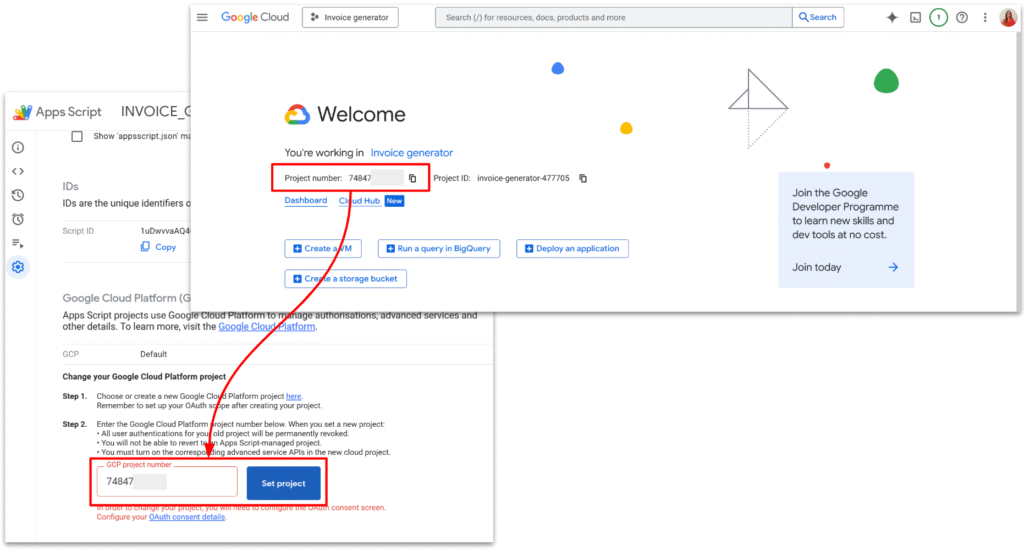
We will first create a new Apps Script project. By default, Apps Script links new project to GCP, but for the next steps, we will need to manually link our GCP project.

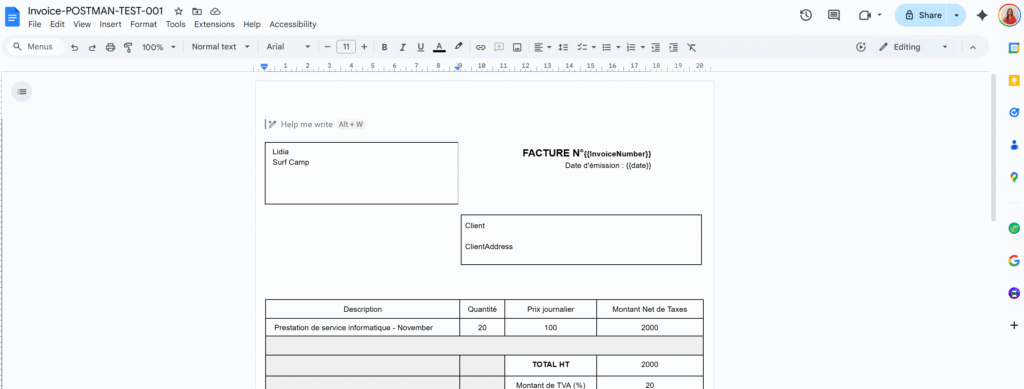
I also setup a very simple invoice template, with the tags I wanted.

Here is the full code.

/**
 * Web app entry point for POST requests.
 * Expects JSON payload with:
 * {
 *   "tempId": "TEMPLATE_DOC_ID" | "templateId",
 *   "folderId": "DRIVE_FOLDER_ID",
 *   "filename": "Invoice 001",
 *   "tags": {
 *     "InvoiceNumber": "Lidia",
 *     "date": "123 €",
 *     "ClientName":"",
 *   }
 * }
 *
 * @param {GoogleAppsScript.Events.DoPost} e - The POST event.
 * @returns {GoogleAppsScript.Content.TextOutput} JSON response.
 */
function doPost(e) {
  let output;

  try {
    if (!e || !e.postData || !e.postData.contents) {
      throw new Error("Missing POST body.");
    }
    const payload = JSON.parse(e.postData.contents);

    const result = createInvoiceFromTemplate_(payload);

    const response = {
      success: true,
      invoiceId: result.id,
      invoiceUrl: result.url,
      filename: result.name,
    };

    output = ContentService
      .createTextOutput(JSON.stringify(response))
      .setMimeType(ContentService.MimeType.JSON);
  } catch (err) {
    const errorResponse = {
      success: false,
      error: String(err && err.message ? err.message : err),
    };

    output = ContentService
      .createTextOutput(JSON.stringify(errorResponse))
      .setMimeType(ContentService.MimeType.JSON);
  }

  return output;
}

/**
 * @typedef {Object} InvoiceRequestPayload
 * @property {string} [tempId] - Template document ID (legacy name).
 * @property {string} [templateId] - Template document ID (preferred name).
 * @property {string} [folderId] - Drive folder ID where the new doc should be stored.
 * @property {string} filename - Name for the new document.
 * @property {Object.<string, string|number|boolean|null>} tags - Map of placeholders to values.
 */

/**
 * @typedef {Object} InvoiceCreationResult
 * @property {string} id - Created document ID.
 * @property {string} url - Created document URL.
 * @property {string} name - Created document name.
 */

/**
 * Creates an invoice document from a template and replaces placeholders.
 *
 * @param {InvoiceRequestPayload} payload - Data describing the invoice to create.
 * @returns {InvoiceCreationResult} Information about the created document.
 */
function createInvoiceFromTemplate_(payload) {
  if (!payload) {
    throw new Error("Payload is required.");
  }

  const templateId = payload.templateId || payload.tempId;
  if (!templateId) {
    throw new Error("templateId (or tempId) is required.");
  }

  if (!payload.filename) {
    throw new Error("filename is required.");
  }


  let templateFile;
  try {
    templateFile = DriveApp.getFileById(templateId)
  } catch (err) {
    throw new Error("Template file not found or inaccessible.");
  }

  /** @type {GoogleAppsScript.Drive.Folder} */
  let targetFolder;

  if (payload.folderId) {
    try {
      targetFolder = DriveApp.getFolderById(payload.folderId);
    } catch (err) {
      throw new Error("Target folder not found or inaccessible.");
    }
  } else {
    // Fallback: use the template's parent folder if possible, or root
    const parents = templateFile.getParents();
    targetFolder = parents.hasNext() ? parents.next() : DriveApp.getRootFolder();
  }

  const copy = templateFile.makeCopy(payload.filename, targetFolder);
  const newDocId = copy.getId();
  const newDocUrl = copy.getUrl();

  const tags = payload.tags || {};
  if (Object.keys(tags).length > 0) {
    replaceTagsInDocument_(newDocId, tags);
  }

  return {
    id: newDocId,
    url: newDocUrl,
    name: copy.getName(),
  };
}

/**
 * Replaces placeholders in a Google Docs document body.
 * Placeholders are expected in the form {{key}}.
 *
 * @param {string} docId - ID of the document to update.
 * @param {Object.<string, string|number|boolean|null>} tags - Map of placeholders to values.
 * @returns {void}
 */
function replaceTagsInDocument_(docId, tags) {
  const doc = DocumentApp.openById(docId);
  const body = doc.getBody();

  const entries = Object.entries(tags);

  for (const [key, rawValue] of entries) {
    const value = rawValue === null || rawValue === undefined ? "" : String(rawValue);
    const placeholder = "{{" + key + "}}";

    body.replaceText(escapeForRegex_(placeholder), value);

  }

  doc.saveAndClose();
}

/**
 * Escapes a string to be used safely inside a regular expression.
 *
 * @param {string} text - Raw text to escape.
 * @returns {string} Escaped text safe to use in a regex.
 */
function escapeForRegex_(text) {
  return text.replace(/[.*+?^${}()|[\]\\]/g, "\\$&");
}

Web App vs Execution API vs Library, in plain terms

There are three “flavours” of Apps Script that often get mixed up:

  • Web App: you deploy doGet / doPost, you get a /exec URL.
    Perfect for what we’re doing: lightweight HTTP API.
  • Execution API: URL on script.googleapis.com like .../scripts/ID:run.
    Needs OAuth tokens, used to run script functions from other backends. Great, but heavier.
  • Library: reusable code for other Apps Script projects. Not an HTTP endpoint.

In this tutorial, the only one we need is the Web App deployment.
In the upcoming article, we will focus on how to setup OAuth tokens with the execution API.

Deploying as Web App

In the Apps Script editor:

  1. Deploy → Manage deployments → New deployment
  2. Type: Web app
  3. Execute as: Me
  4. Who has access: Anyone (or “Anyone with the link” while testing)
  5. Deploy and copy the Web app URL (ends in /exec)

Open that URL once in your browser, go through the “unverified app” screen, and accept the scopes.

From now on:

  • The script runs as you (so it can access your Docs and Drive)
  • Your backend and Postman can call the /exec URL without any extra OAuth dance

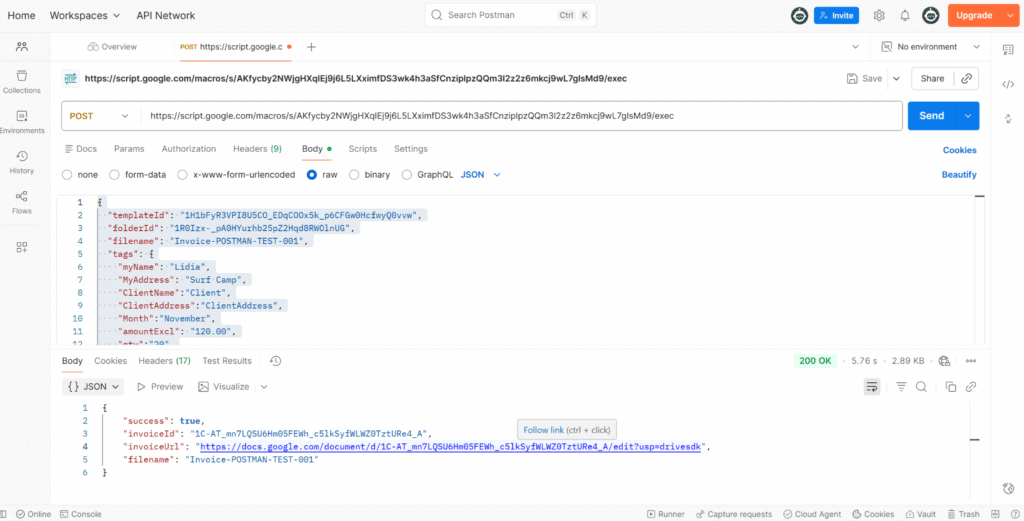
Testing the API with Postman

In Postman:

  • Method: POST
  • URL: your /exec Web App URL
  • Headers: Content-Type: application/json
  • Body → raw → JSON:
{
  "templateId": "1H1bFyR3VPI8U5CO_EDqCOOx5k_p6CFGw0HcfwyQ0vvw",
  "folderId": "1R0Izx-_pA0HYurhb25pZ2Hqd8RWOlnUG",
  "filename": "Invoice-POSTMAN-TEST-001",
  "tags": {
    "myName": "Lidia",
    "MyAddress": "Surf Camp",
    "ClientName": "Client",
    "ClientAddress": "ClientAddress",
    "Month": "November",
    "amountExcl": "120.00",
    "qty": "20",
    "Price": "100",
    "TotalTaxFree": "2000",
    "TaxRate": "20",
    "TaxTotal": "200",
    "TotalPrice": "2400"
  }
}

Click Send.
If everything is set up correctly, you should get JSON like:

And the tags have been replaced!

The weird Drive “server error” and apps-macros@system.gserviceaccount.com

When I first tried calling DriveApp.getFileById(templateId), I had the following error:

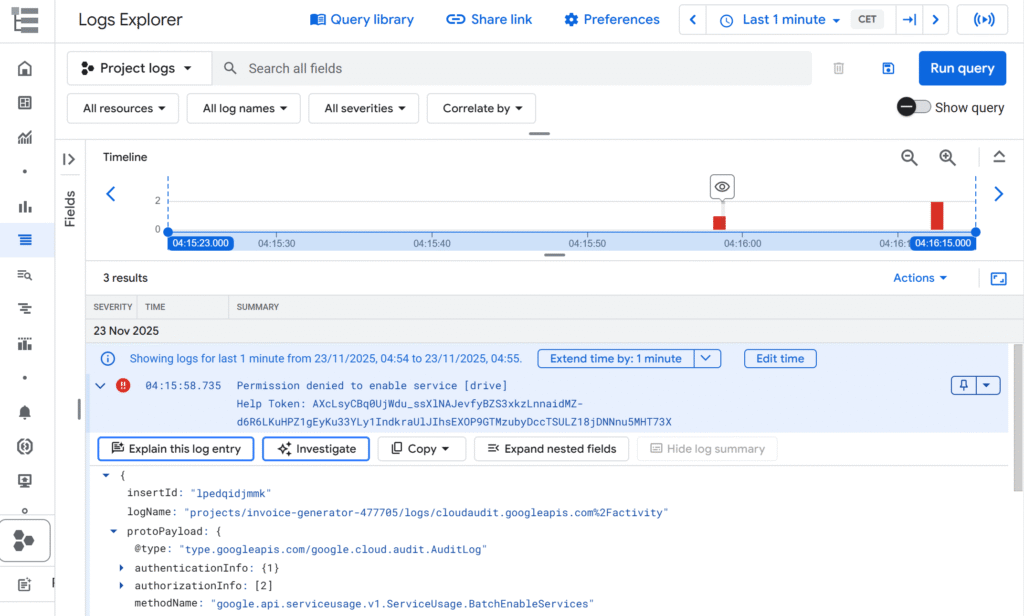
And in the console of Apps Script:

The template existed. It opened fine in Drive.
The script was running as the same user.
But inside the Apps Script project (linked to a Cloud project), Drive access was just… failing.

This error happens because Apps Script relies on a Google-managed system account behind the scenes, and that account doesn’t have the permissions it needs to run your script.
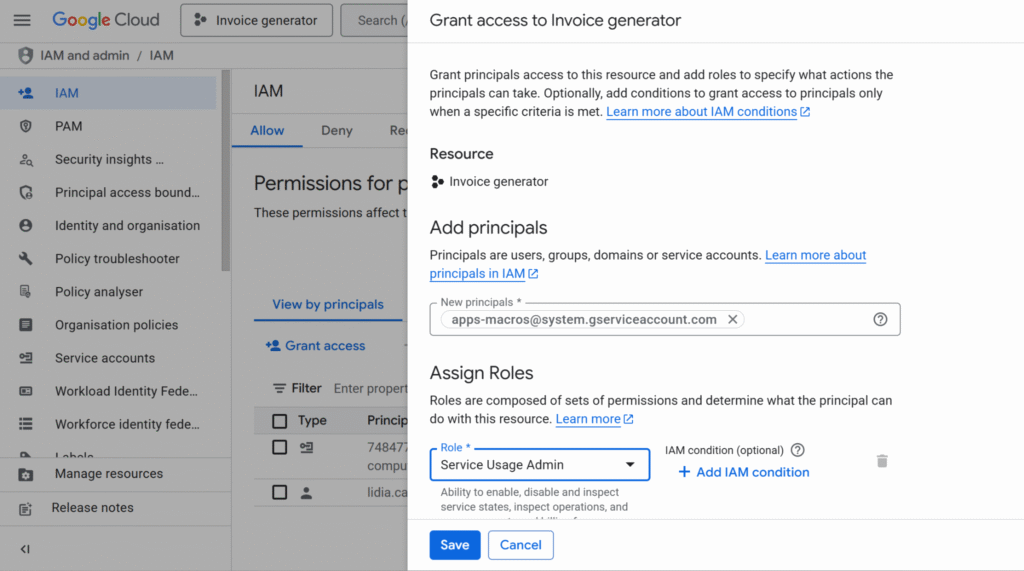
To fix it, you have to manually grant the right role to apps-macros@system.gserviceaccount.com.

You won’t see this address in the “Service Accounts” list, but it’s still a real identity in your project that you can add in IAM and assign roles to.

To fix it, I had to:

  1. Go to IAM & Admin → IAM in the Cloud Console.
  2. Click Grant access.
  3. Add a new principal:
    apps-macros@system.gserviceaccount.com
  4. Give it the role: Service Usage Admin.
  5. Save.

After that, API began returning normal JSON responses instead of that generic “server error”.

Wrapping up

Using Apps Script as an API is a nice combo when:

  • You already live in Google Workspace
  • You want invoices/letters/contracts as Docs, not PDFs generated from scratch
  • You’re happy to let Google Drive handle storage and sharing

The flow looks like this:

  1. Frontend or backend creates invoice data.
  2. Backend calls the Apps Script Web App with JSON.
  3. Apps Script copies the template, replaces tags, and responds with the document URL.
  4. You store the URL in your database and show it in your UI.

And if you ever see that mysterious Drive “server error” in a linked project, check the logs and don’t be afraid to give apps-macros@system.gserviceaccount.com the role it’s asking for.

In the next article, we’ll look at how to connect an app to this API and how to integrate Apps Script into more complex, real-world workflows.