Google Apps Script CacheService: What It Is and How to Use It

I love Apps Script. But if you use it regularly, you are probably familiar with slow execution times, especially when your script repeatedly calls APIs, BigQuery, or other external services.

When an Apps Script application repeatedly needs the same data, fetching or computing that data again every time can be wasteful.

This is where caching becomes useful.

What is a cache?

A cache is temporary storage used to keep data that your application is likely to need again soon.

A simple analogy is your kitchen. You could put your coffee mug back into a cupboard every time you take a sip, but if you know you will need it again in two minutes, it makes more sense to leave it on the counter.
The cupboard is your permanent storage.
The counter is your cache.

In Apps Script, caching can be an effective way to reduce execution time and unnecessary calls to external services.
Google describes the Apps Script Cache service as a way to temporarily store results that take time to fetch or compute. Examples include API responses, BigQuery results, calculated datasets, reference data, or any other information that is requested frequently but does not need to be recalculated every time.

Where is CacheService data actually stored?

When you write:

const cache = CacheService.getScriptCache();

Apps Script gives you access to temporary server-side cache storage managed by Google.

The data is therefore not stored in your Google Sheet, Google Drive, browser, script properties, or local computer.

Google manages the storage infrastructure behind CacheService. You interact with it only through methods such as:

cache.get(key);
cache.put(key, value);
cache.remove(key);

You cannot open the cache somewhere and inspect its content like you would a spreadsheet or database.

More importantly, the cache should never be considered permanent storage.

Google explicitly states that cached data is not guaranteed to remain available until its expiration time. A call to get() can therefore return null even if you previously stored the value. Location must always be able to recreate the data when the cache is empty.

How does CacheService work?

CacheService stores temporary data as key/value pairs.

const cache = CacheService.getScriptCache();

cache.put("language", "en");

const language = cache.get("language");

If the key exists, get() returns its value. Otherwise, it returns null.

CacheService stores values as strings, so objects and arrays should usually be converted to JSON:

cache.put("products", JSON.stringify(products));

const products = JSON.parse(cache.get("products"));

Apps Script provides three cache scopes:

CacheService.getScriptCache();

Script cache is shared by all users of the script. It is useful for common data such as BigQuery results, API responses, or reference data.

CacheService.getUserCache();

User cache is specific to each user and script. It is useful for user preferences, filters, or recent activity.

CacheService.getDocumentCache();

Document cache is specific to the script and its container document, such as a Google Sheet. It returns null when there is no container document.

In short, the scope determines who can access the cached value, while the key determines which value you want to retrieve.

A practical example

Suppose our application regularly requests a sales summary from BigQuery.

Without caching, every call executes the query again.

Instead, we can first check whether we already have a recent result.

/**
 * Returns a sales summary from BigQuery, using CacheService
 * to avoid executing the query unnecessarily.
 *
 * @return {Array<Object>} Sales summary rows.
 */
function getSalesSummary() {
  const cache = CacheService.getScriptCache();
  const cacheKey = "sales_summary";

  const cachedData = cache.get(cacheKey);

  if (cachedData) {
    return JSON.parse(cachedData);
  }

  const projectId = "YOUR_PROJECT_ID";

  const request = {
    query: `
      SELECT
        country,
        SUM(amount) AS total_sales
      FROM \`project.dataset.sales\`
      GROUP BY country
    `,
    useLegacySql: false
  };

  const response = BigQuery.Jobs.query(request, projectId);

  const data = response.rows || [];

  cache.put(
    cacheKey,
    JSON.stringify(data),
    300
  );

  return data;
}

The 300 passed to put() represents seconds.
So the result is requested to remain cached for five minutes.
The workflow becomes:

First request

Cache

Nothing found

BigQuery

Result

Save result for 5 minutes

Second request

Cache

Result found

Return immediately

BigQuery is never contacted during the second request. This can reduce execution time, external API calls, BigQuery usage, and unnecessary computation.

Going further, caching BigQuery queries

In a real application, using a fixed cache key such as sales_summary is often not sufficient.
Different SQL queries produce different results.
A better solution is to generate a cache key from the query itself.
That is the strategy I use the most. The SQL query is converted into a SHA-256 hash:

const queryHash = Utilities.computeDigest(
  Utilities.DigestAlgorithm.SHA_256,
  query
);

const cacheKey =
  `bq_cache_${SuperBigQuery.convertByteArrayToHex(queryHash)}`;

Then the script checks the script-level cache before calling BigQuery:

const cache = CacheService.getScriptCache();
const cachedData = SuperBigQuery.retrieveFromCache(cache, cacheKey);

if (cachedData) {
  return JSON.parse(cachedData);
}

If the query has already been executed recently, the cached result is returned.
Otherwise BigQuery is called and the result is cached afterward:

SuperBigQuery.storeInCache(
  cache,
  cacheKey,
  JSON.stringify(finalData),
  cacheExpirationMinutes
);

This means that identical SQL queries automatically share the same cached result, while different queries generate different cache keys.
This is particularly useful when several users of an application repeatedly request the same dataset.
Because the implementation uses getScriptCache(), the cached BigQuery result can be reused by all users of the script rather than being recreated separately for each user.
CacheService is designed for relatively small, temporary data.

Limitations

According to the current Apps Script documentation:

  • A cache key can contain up to 250 characters.
  • A single cached value can contain up to 100 KB.
  • A cache can hold up to 1,000 items.
  • The default expiration is 600 seconds, or 10 minutes.
  • A custom expiration can be between 1 second and 21,600 seconds, or 6 hours. The expiration value is also a request rather than a guarantee. Google may remove cached data earlier. This is why CacheService should be viewed as an optimization layer, not as a database.

A query can easily return more than the 100 KB allowed for a single cache entry…
One possible solution is to split the serialized result into several cache entries.

Here is an example of function to achieve this outcom.

/**
 * Stores data in the cache, splitting the value into chunks if it is too large.
 *
 * @param {Cache} cache - The cache service.
 * @param {string} cacheKey - The key used to store the data.
 * @param {string} data - The data to store.
 * @param {number} cacheExpirationMinutes - The cache expiration time in minutes.
 */
static storeInCache(cache, cacheKey, data, cacheExpirationMinutes) {
  const MAX_SIZE = 100 * 1024; // Maximum size of 100 KB per cache entry

  if (data.length > MAX_SIZE) {
    // Split the data into chunks
    const parts = Math.ceil(data.length / MAX_SIZE);

    for (let i = 0; i < parts; i++) {
      const partKey = `${cacheKey}_part_${i}`;
      const partData = data.substring(i * MAX_SIZE, (i + 1) * MAX_SIZE);
      cache.put(partKey, partData, cacheExpirationMinutes * 60);
    }

    // Store the number of chunks
    cache.put(`${cacheKey}_parts`, parts.toString(), cacheExpirationMinutes * 60);
  } else {
    cache.put(cacheKey, data, cacheExpirationMinutes * 60);
  }
}

And then, retrieve your data as follows.

/**
 * Retrieves data from the cache, rebuilding it from chunks if necessary.
 *
 * @param {Cache} cache - The cache service.
 * @param {string} cacheKey - The key used to retrieve the data.
 *
 * @returns {string|null} The reconstructed data, or null if it does not exist.
 */
static retrieveFromCache(cache, cacheKey) {
  const parts = cache.get(`${cacheKey}_parts`);

  if (parts) {
    // Rebuild the data from its chunks
    let fullData = '';

    for (let i = 0; i < parseInt(parts, 10); i++) {
      const partKey = `${cacheKey}_part_${i}`;
      const partData = cache.get(partKey);

      if (partData) {
        fullData += partData;
      } else {
        return null; // Return null if any chunk is missing
      }
    }

    return fullData;
  } else {
    // No chunks found, try to retrieve the complete data
    return cache.get(cacheKey);
  }
}

Conclusion

CacheService is one of the simplest ways to improve the performance of an Apps Script application when the same expensive data is requested repeatedly.

The most important rule is to treat the cache as temporary and optional.

Your cache should make your application faster when the data is available, but your application should continue to work correctly when it is not.
Turn an Apps Script project into an API (and Test It with Postman)

I’ve been doing freelancing for 5+ years now. Every month, I’d add a new row in my follow-up spreadsheet, duplicate my invoice, and export it as PDF to send by email. Yes, manually.

In French we say: “les cordonniers sont toujours les plus mal chaussés”. (or “the cobbler’s children go barefoot” in English).

Well I’ve decided this has to stop, and I’ve been working on a custom SaaS to handle my invoices in a proper way! Backend runs on Cloud Run, the UI is a simple web app. And for the invoice document generation itself… I’m using Apps Script!

In this article, I’ll focus on the Apps Script project itself, and its deployment so that it can be called from another app or from Postman to start with.

The connection with the SaaS itself will be for another article!

Why use Apps Script as an API?

You get a lot for free!

  • Google Docs is your template engine (layout, fonts, logo… all in the editor)
  • Drive stores your invoices in the right folder
  • Apps Script can run as you and use your Drive/Docs permissions
  • You get an HTTP endpoint that your backend (or Postman) can POST JSON to

Also, my entire blog is about Apps Script, so…

So the main idea in our example is:

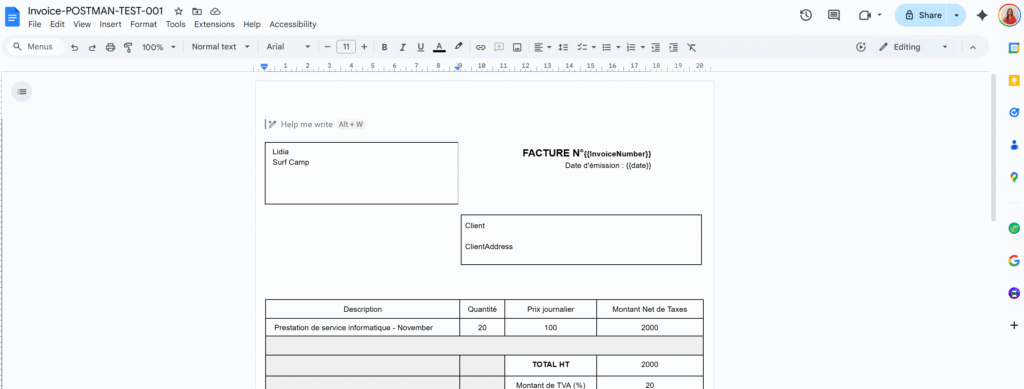
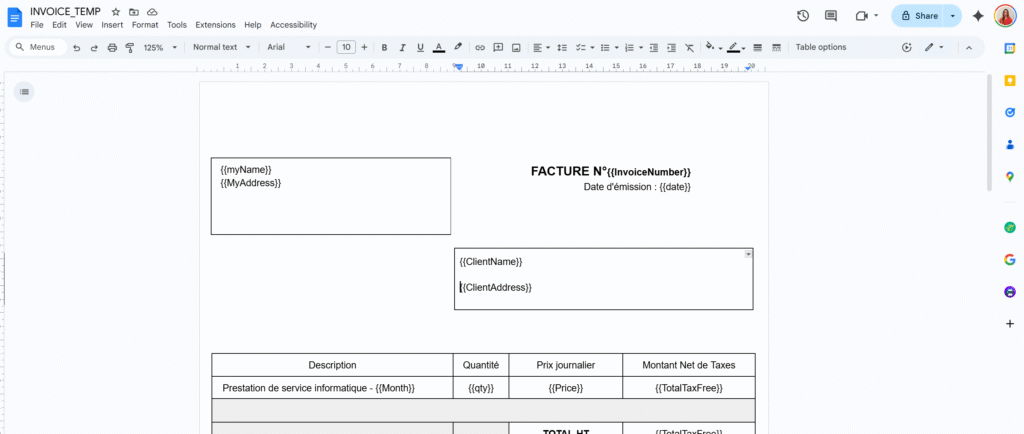
  1. Have a Docs template with placeholders like {{ClientName}}, {{TotalPrice}}.
  2. Send a JSON payload to a Web App URL.
  3. Apps Script copies the template, replaces the tags, and returns the document URL.

No custom PDF rendering, no extra infra.

The Apps Script “Invoice API” code

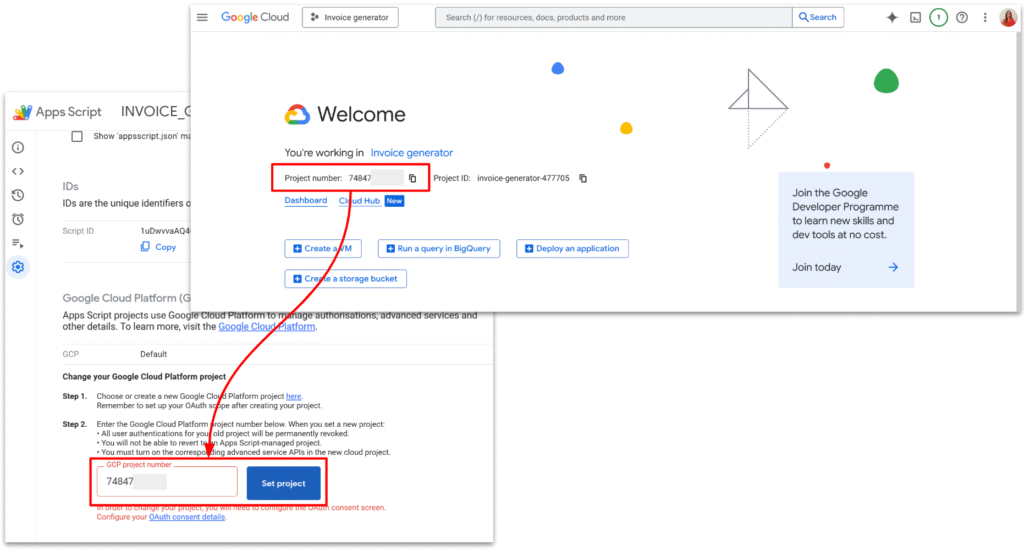
We will first create a new Apps Script project. By default, Apps Script links new project to GCP, but for the next steps, we will need to manually link our GCP project.

I also setup a very simple invoice template, with the tags I wanted.

Here is the full code.

/**
 * Web app entry point for POST requests.
 * Expects JSON payload with:
 * {
 *   "tempId": "TEMPLATE_DOC_ID" | "templateId",
 *   "folderId": "DRIVE_FOLDER_ID",
 *   "filename": "Invoice 001",
 *   "tags": {
 *     "InvoiceNumber": "Lidia",
 *     "date": "123 €",
 *     "ClientName":"",
 *   }
 * }
 *
 * @param {GoogleAppsScript.Events.DoPost} e - The POST event.
 * @returns {GoogleAppsScript.Content.TextOutput} JSON response.
 */
function doPost(e) {
  let output;

  try {
    if (!e || !e.postData || !e.postData.contents) {
      throw new Error("Missing POST body.");
    }
    const payload = JSON.parse(e.postData.contents);

    const result = createInvoiceFromTemplate_(payload);

    const response = {
      success: true,
      invoiceId: result.id,
      invoiceUrl: result.url,
      filename: result.name,
    };

    output = ContentService
      .createTextOutput(JSON.stringify(response))
      .setMimeType(ContentService.MimeType.JSON);
  } catch (err) {
    const errorResponse = {
      success: false,
      error: String(err && err.message ? err.message : err),
    };

    output = ContentService
      .createTextOutput(JSON.stringify(errorResponse))
      .setMimeType(ContentService.MimeType.JSON);
  }

  return output;
}

/**
 * @typedef {Object} InvoiceRequestPayload
 * @property {string} [tempId] - Template document ID (legacy name).
 * @property {string} [templateId] - Template document ID (preferred name).
 * @property {string} [folderId] - Drive folder ID where the new doc should be stored.
 * @property {string} filename - Name for the new document.
 * @property {Object.<string, string|number|boolean|null>} tags - Map of placeholders to values.
 */

/**
 * @typedef {Object} InvoiceCreationResult
 * @property {string} id - Created document ID.
 * @property {string} url - Created document URL.
 * @property {string} name - Created document name.
 */

/**
 * Creates an invoice document from a template and replaces placeholders.
 *
 * @param {InvoiceRequestPayload} payload - Data describing the invoice to create.
 * @returns {InvoiceCreationResult} Information about the created document.
 */
function createInvoiceFromTemplate_(payload) {
  if (!payload) {
    throw new Error("Payload is required.");
  }

  const templateId = payload.templateId || payload.tempId;
  if (!templateId) {
    throw new Error("templateId (or tempId) is required.");
  }

  if (!payload.filename) {
    throw new Error("filename is required.");
  }


  let templateFile;
  try {
    templateFile = DriveApp.getFileById(templateId)
  } catch (err) {
    throw new Error("Template file not found or inaccessible.");
  }

  /** @type {GoogleAppsScript.Drive.Folder} */
  let targetFolder;

  if (payload.folderId) {
    try {
      targetFolder = DriveApp.getFolderById(payload.folderId);
    } catch (err) {
      throw new Error("Target folder not found or inaccessible.");
    }
  } else {
    // Fallback: use the template's parent folder if possible, or root
    const parents = templateFile.getParents();
    targetFolder = parents.hasNext() ? parents.next() : DriveApp.getRootFolder();
  }

  const copy = templateFile.makeCopy(payload.filename, targetFolder);
  const newDocId = copy.getId();
  const newDocUrl = copy.getUrl();

  const tags = payload.tags || {};
  if (Object.keys(tags).length > 0) {
    replaceTagsInDocument_(newDocId, tags);
  }

  return {
    id: newDocId,
    url: newDocUrl,
    name: copy.getName(),
  };
}

/**
 * Replaces placeholders in a Google Docs document body.
 * Placeholders are expected in the form {{key}}.
 *
 * @param {string} docId - ID of the document to update.
 * @param {Object.<string, string|number|boolean|null>} tags - Map of placeholders to values.
 * @returns {void}
 */
function replaceTagsInDocument_(docId, tags) {
  const doc = DocumentApp.openById(docId);
  const body = doc.getBody();

  const entries = Object.entries(tags);

  for (const [key, rawValue] of entries) {
    const value = rawValue === null || rawValue === undefined ? "" : String(rawValue);
    const placeholder = "{{" + key + "}}";

    body.replaceText(escapeForRegex_(placeholder), value);

  }

  doc.saveAndClose();
}

/**
 * Escapes a string to be used safely inside a regular expression.
 *
 * @param {string} text - Raw text to escape.
 * @returns {string} Escaped text safe to use in a regex.
 */
function escapeForRegex_(text) {
  return text.replace(/[.*+?^${}()|[\]\\]/g, "\\$&");
}

Web App vs Execution API vs Library, in plain terms

There are three “flavours” of Apps Script that often get mixed up:

  • Web App: you deploy doGet / doPost, you get a /exec URL.
    Perfect for what we’re doing: lightweight HTTP API.
  • Execution API: URL on script.googleapis.com like .../scripts/ID:run.
    Needs OAuth tokens, used to run script functions from other backends. Great, but heavier.
  • Library: reusable code for other Apps Script projects. Not an HTTP endpoint.

In this tutorial, the only one we need is the Web App deployment.
In the upcoming article, we will focus on how to setup OAuth tokens with the execution API.

Deploying as Web App

In the Apps Script editor:

  1. Deploy → Manage deployments → New deployment
  2. Type: Web app
  3. Execute as: Me
  4. Who has access: Anyone (or “Anyone with the link” while testing)
  5. Deploy and copy the Web app URL (ends in /exec)

Open that URL once in your browser, go through the “unverified app” screen, and accept the scopes.

From now on:

  • The script runs as you (so it can access your Docs and Drive)
  • Your backend and Postman can call the /exec URL without any extra OAuth dance

Testing the API with Postman

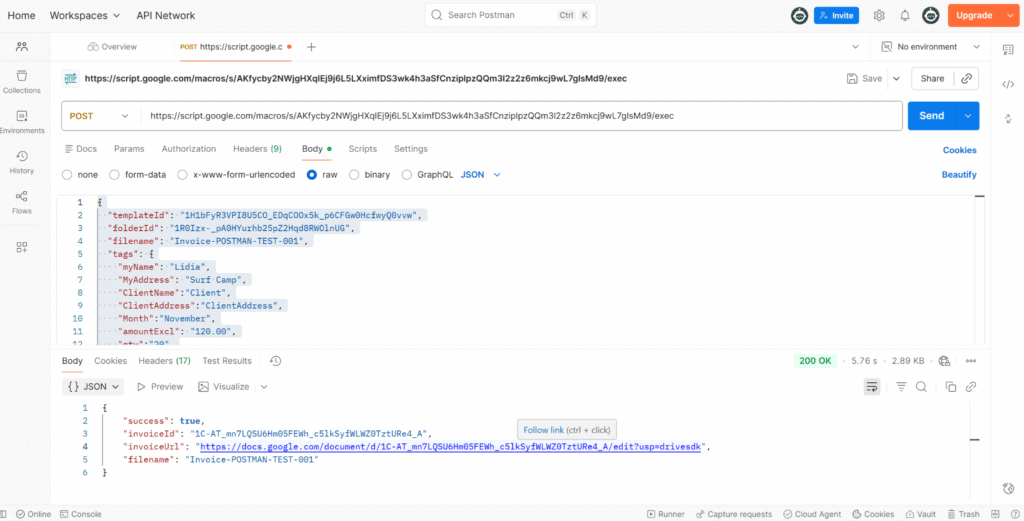
In Postman:

  • Method: POST
  • URL: your /exec Web App URL
  • Headers: Content-Type: application/json
  • Body → raw → JSON:
{
  "templateId": "1H1bFyR3VPI8U5CO_EDqCOOx5k_p6CFGw0HcfwyQ0vvw",
  "folderId": "1R0Izx-_pA0HYurhb25pZ2Hqd8RWOlnUG",
  "filename": "Invoice-POSTMAN-TEST-001",
  "tags": {
    "myName": "Lidia",
    "MyAddress": "Surf Camp",
    "ClientName": "Client",
    "ClientAddress": "ClientAddress",
    "Month": "November",
    "amountExcl": "120.00",
    "qty": "20",
    "Price": "100",
    "TotalTaxFree": "2000",
    "TaxRate": "20",
    "TaxTotal": "200",
    "TotalPrice": "2400"
  }
}

Click Send.
If everything is set up correctly, you should get JSON like:

And the tags have been replaced!

The weird Drive “server error” and apps-macros@system.gserviceaccount.com

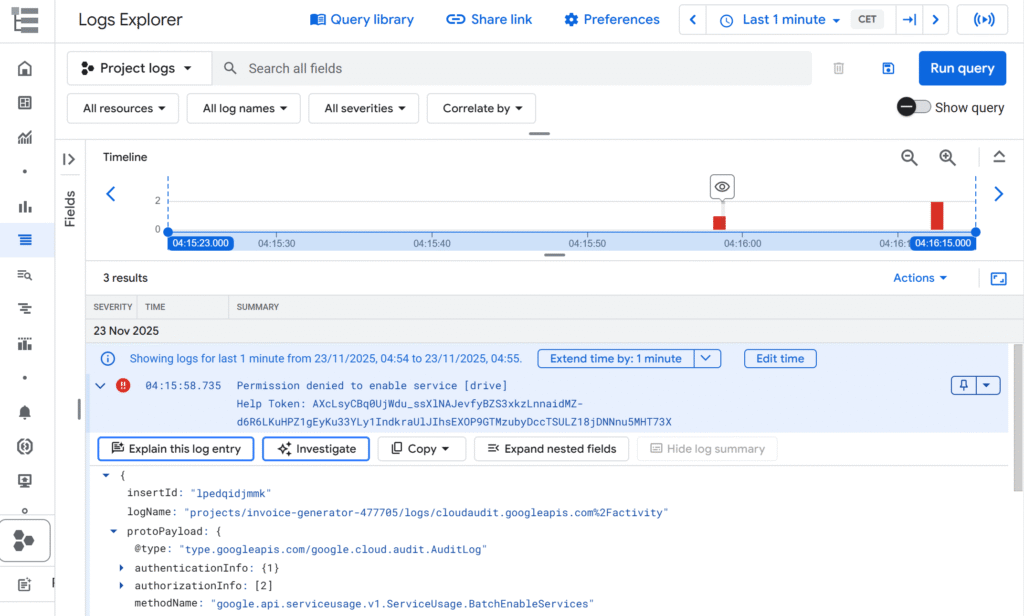
When I first tried calling DriveApp.getFileById(templateId), I had the following error:

And in the console of Apps Script:

The template existed. It opened fine in Drive.
The script was running as the same user.
But inside the Apps Script project (linked to a Cloud project), Drive access was just… failing.

This error happens because Apps Script relies on a Google-managed system account behind the scenes, and that account doesn’t have the permissions it needs to run your script.
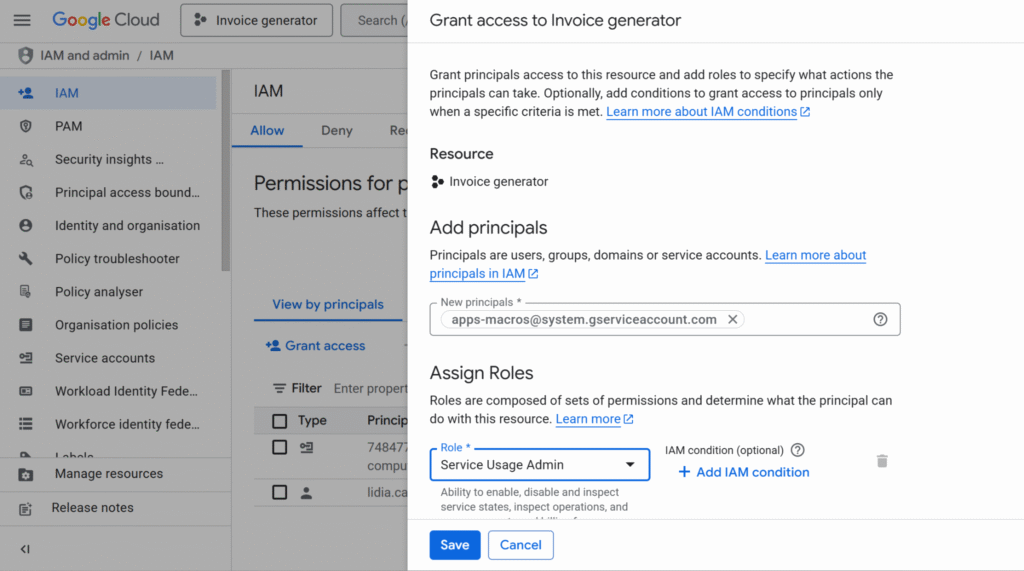
To fix it, you have to manually grant the right role to apps-macros@system.gserviceaccount.com.

You won’t see this address in the “Service Accounts” list, but it’s still a real identity in your project that you can add in IAM and assign roles to.

To fix it, I had to:

  1. Go to IAM & Admin → IAM in the Cloud Console.
  2. Click Grant access.
  3. Add a new principal:
    apps-macros@system.gserviceaccount.com
  4. Give it the role: Service Usage Admin.
  5. Save.

After that, API began returning normal JSON responses instead of that generic “server error”.

Wrapping up

Using Apps Script as an API is a nice combo when:

  • You already live in Google Workspace
  • You want invoices/letters/contracts as Docs, not PDFs generated from scratch
  • You’re happy to let Google Drive handle storage and sharing

The flow looks like this:

  1. Frontend or backend creates invoice data.
  2. Backend calls the Apps Script Web App with JSON.
  3. Apps Script copies the template, replaces tags, and responds with the document URL.
  4. You store the URL in your database and show it in your UI.

And if you ever see that mysterious Drive “server error” in a linked project, check the logs and don’t be afraid to give apps-macros@system.gserviceaccount.com the role it’s asking for.

In the next article, we’ll look at how to connect an app to this API and how to integrate Apps Script into more complex, real-world workflows.