
Faster dashboards, cleaner code, and a rendering engine powered by the Sheets API.




Google Sheets is fantastic for quick dashboards, tracking tools, and prototypes. And with Apps Script, you can make them dynamic, automated, and even smarter.
But the moment you start building something real, a complex layout, a styled dashboard, a multi-section report, the Apps Script code quickly turns into:
- messy
- repetitive
- slow
- painful to maintain
Setting backgrounds, borders, number formats, writing values… everything requires individual calls, and your script balloon quickly.
To make this easier, you usually have two options:
- Inject data into an existing template
- Or…using RenderSheet
RenderSheet is a tiny, component-based renderer for Google Sheets, inspired by React’s architecture and built entirely in Apps Script.
Let’s explore how it works.!
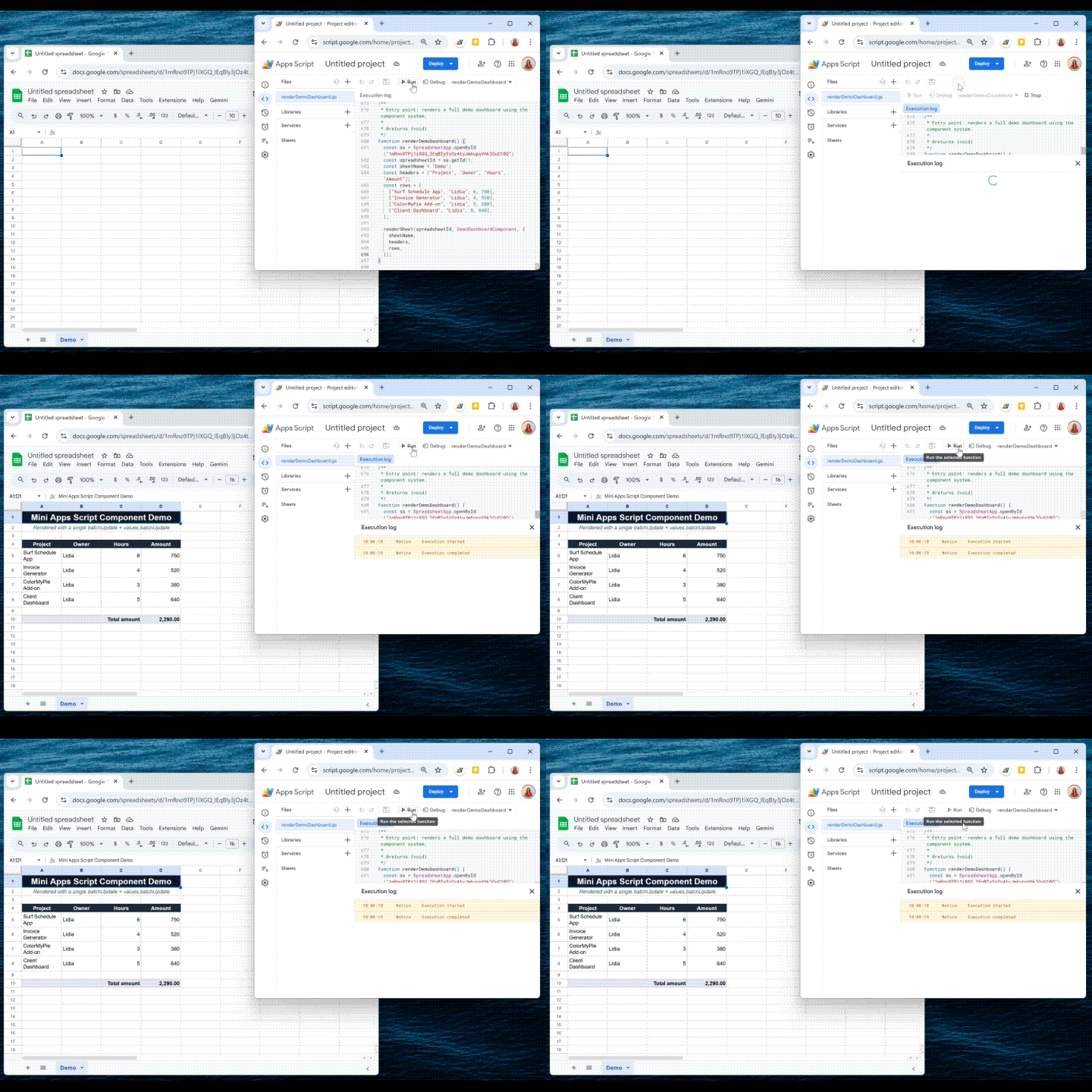
Introducing RenderSheet
RenderSheet is a lightweight, React-inspired renderer for Google Sheets.
Instead of scattering .setValue(), .setBackground(), .setFontWeight(), etc. everywhere in your script, you write components:
<Title /><HeaderRow /><DataTable /><SummaryRow /><StatusPill />, etc.
Each component knows how to render itself.
Your spreadsheet becomes a clean composition of reusable blocks, just like a frontend UI.
Why a “React-like” approach?
React works because it forces you to think in components:
- a Header component
- a Table component
- a Summary component
- a StatusPill component
Each component knows how to render itself, and the app becomes a composition of smaller reusable pieces.I wanted the exact same thing, but for spreadsheets.
With RenderSheet, instead of writing:
sheet.getRange("A1").setValue("Hello");
sheet.getRange("A1").setBackground("#000");
sheet.getRange("A1").setFontWeight("bold");
// and so on...
You write:
class HeaderComponent extends SheetComponent {
  render() {
    this.context.writeRange("Sheet1!A1", [["Hello"]]);
    this.context.setBackground("Sheet1", "A1", "#000");
  }
}
No direct API calls. No multiple setValue() calls.
Just a clean render() method.
The Core Idea: One Render = Two Sheets API Calls
To achieve this “single render” effect, we simply divide to conquer:
- one API call for injecting the data
- and another for applying all the styling
Before we can make the magic happen, we need to enable the Advanced Google Sheets API in our Apps Script project.
This unlocks the batchUpdate method, the real engine behind RenderSheet.
To do so, just click the little + button on the left side panel, in front of Services, and select Google Sheets API:
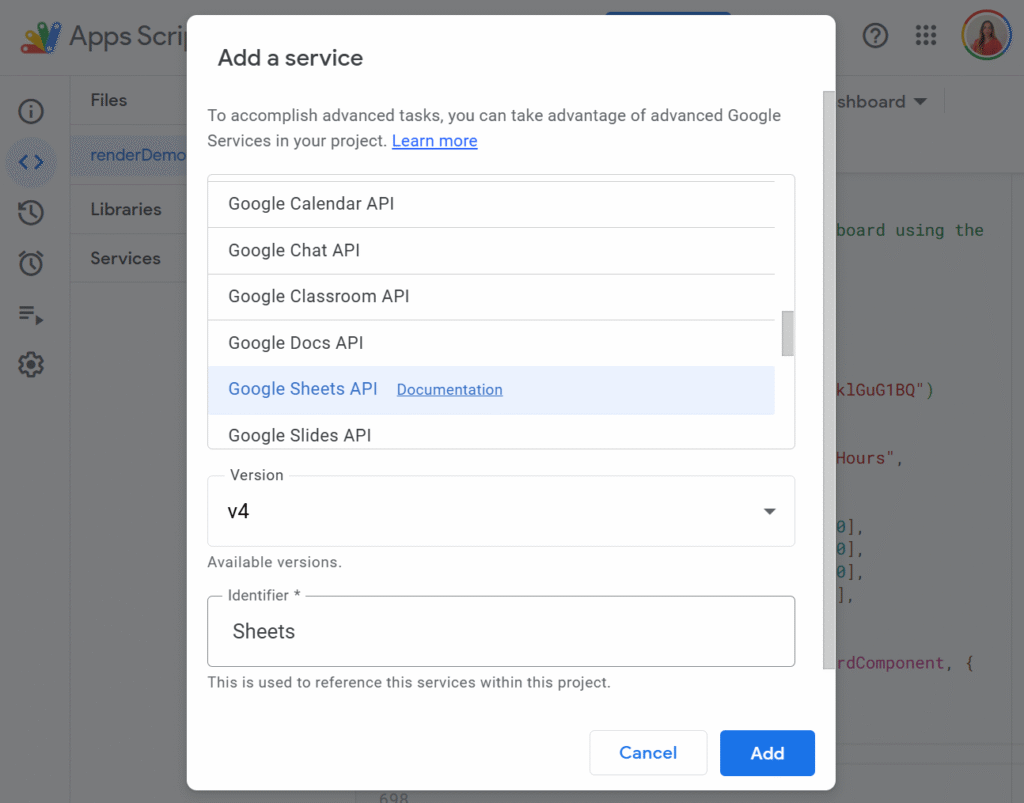
This gives you access to the batchUpdate method, the real engine behind RenderSheet.
Now let’s look at the core mechanism.
The SheetContext (the Render Engine)
SheetContext is the core of RenderSheet.
It collects all writes and formatting instructions and applies them in two API calls, using easy functions such as:
- all data writes (writeRange)
- all formatting instructions (setBackground, setTextFormat, setAlignment…)
But here’s the key:
None of these functions execute anything immediately.
They only describe what the component wants to render.
The actual rendering only happens at the end, through two API calls.
You can think of SheetContext as your “toolbox”, and feel free to extend it with your own helpers.
Here is its full implementation:
class SheetContext {
  constructor(spreadsheetId) {
    this.spreadsheetId = spreadsheetId;
    this.valueRanges = [];
    this.requests = [];
  }

  writeRange(rangeA1, values) {
    this.valueRanges.push({ range: rangeA1, values });
  }

  setBackground(sheetName, a1Range, color) {
    const gridRange = this.convertA1ToGridRange(sheetName, a1Range);
    if (!gridRange) return;

    this.requests.push({
      repeatCell: {
        range: gridRange,
        cell: { userEnteredFormat: { backgroundColor: this.hexToRgbColor(color) }},
        fields: "userEnteredFormat.backgroundColor",
      },
    });
  }

  setNumberFormat(sheetName, a1Range, numberFormatPattern) {
    const gridRange = this.convertA1ToGridRange(sheetName, a1Range);
    if (!gridRange) return;

    this.requests.push({
      repeatCell: {
        range: gridRange,
        cell: {
          userEnteredFormat: {
            numberFormat: { type: "NUMBER", pattern: numberFormatPattern },
          },
        },
        fields: "userEnteredFormat.numberFormat",
      },
    });
  }

  setTextFormat(sheetName, a1Range, options) {
    const gridRange = this.convertA1ToGridRange(sheetName, a1Range);
    if (!gridRange) return;

    const textFormat = {};
    if (options.bold !== undefined) textFormat.bold = options.bold;
    if (options.italic !== undefined) textFormat.italic = options.italic;
    if (options.underline !== undefined) textFormat.underline = options.underline;
    if (options.fontSize !== undefined) textFormat.fontSize = options.fontSize;
    if (options.color) {
      textFormat.foregroundColor = this.hexToRgbColor(options.color);
    }

    this.requests.push({
      repeatCell: {
        range: gridRange,
        cell: { userEnteredFormat: { textFormat }},
        fields: "userEnteredFormat.textFormat",
      },
    });
  }

  setAlignment(sheetName, a1Range, options) {
    const gridRange = this.convertA1ToGridRange(sheetName, a1Range);
    if (!gridRange) return;

    const format = {};
    const fields = [];

    if (options.horizontal) {
      format.horizontalAlignment = options.horizontal;
      fields.push("userEnteredFormat.horizontalAlignment");
    }
    if (options.vertical) {
      format.verticalAlignment = options.vertical;
      fields.push("userEnteredFormat.verticalAlignment");
    }

    this.requests.push({
      repeatCell: {
        range: gridRange,
        cell: { userEnteredFormat: format },
        fields: fields.join(","),
      },
    });
  }

  setWrapStrategy(sheetName, a1Range, wrapStrategy) {
    const gridRange = this.convertA1ToGridRange(sheetName, a1Range);
    if (!gridRange) return;

    this.requests.push({
      repeatCell: {
        range: gridRange,
        cell: { userEnteredFormat: { wrapStrategy }},
        fields: "userEnteredFormat.wrapStrategy",
      },
    });
  }

  setBorders(sheetName, a1Range, options) {
    const gridRange = this.convertA1ToGridRange(sheetName, a1Range);
    if (!gridRange) return;

    const border = {
      style: options.style || "SOLID",
      width: options.width || 1,
      color: options.color ? this.hexToRgbColor(options.color) : undefined,
    };

    this.requests.push({
      updateBorders: {
        range: gridRange,
        top: border,
        bottom: border,
        left: border,
        right: border,
        innerHorizontal: border,
        innerVertical: border,
      },
    });
  }

  mergeRange(sheetName, a1Range, mergeType) {
    const gridRange = this.convertA1ToGridRange(sheetName, a1Range);
    if (!gridRange) return;

    this.requests.push({
      mergeCells: {
        range: gridRange,
        mergeType: mergeType || "MERGE_ALL",
      },
    });
  }

  unmergeRange(sheetName, a1Range) {
    const gridRange = this.convertA1ToGridRange(sheetName, a1Range);
    if (!gridRange) return;

    this.requests.push({ unmergeCells: { range: gridRange }});
  }

  autoResizeColumns(sheetName, a1Range) {
    const gridRange = this.convertA1ToGridRange(sheetName, a1Range);
    if (!gridRange) return;

    this.requests.push({
      autoResizeDimensions: {
        dimensions: {
          sheetId: gridRange.sheetId,
          dimension: "COLUMNS",
          startIndex: gridRange.startColumnIndex,
          endIndex: gridRange.endColumnIndex,
        },
      },
    });
  }

  setDataValidationList(sheetName, a1Range, values) {
    const gridRange = this.convertA1ToGridRange(sheetName, a1Range);
    if (!gridRange || values.length === 0) return;

    this.requests.push({
      setDataValidation: {
        range: gridRange,
        rule: {
          condition: {
            type: "ONE_OF_LIST",
            values: values.map(v => ({ userEnteredValue: v })),
          },
          showCustomUi: true,
        },
      },
    });
  }

  addRequest(request) {
    this.requests.push(request);
  }

  commit() {
    if (this.requests.length > 0) {
      Sheets.Spreadsheets.batchUpdate(
        { requests: this.requests },
        this.spreadsheetId
      );
    }

    if (this.valueRanges.length > 0) {
      Sheets.Spreadsheets.Values.batchUpdate(
        { valueInputOption: "USER_ENTERED", data: this.valueRanges },
        this.spreadsheetId
      );
    }
  }

  hexToRgbColor(hex) {
    let clean = hex.replace("#", "");
    if (clean.length === 3) {
      clean = clean.split("").map(ch => ch + ch).join("");
    }
    return {
      red: parseInt(clean.substring(0, 2), 16) / 255,
      green: parseInt(clean.substring(2, 4), 16) / 255,
      blue: parseInt(clean.substring(4, 6), 16) / 255,
    };
  }

  convertA1ToGridRange(sheetName, a1Range) {
    const ss = SpreadsheetApp.openById(this.spreadsheetId);
    const sheet = ss.getSheetByName(sheetName);
    if (!sheet) throw new Error(`Sheet not found: ${sheetName}`);

    const range = sheet.getRange(a1Range);
    return {
      sheetId: sheet.getSheetId(),
      startRowIndex: range.getRow() - 1,
      endRowIndex: range.getRow() - 1 + range.getNumRows(),
      startColumnIndex: range.getColumn() - 1,
      endColumnIndex: range.getColumn() - 1 + range.getNumColumns(),
    };
  }
}
The SheetComponent (your building block)
If SheetContext is the engine, SheetComponent is the UI framework you build with.
Components never call the Sheets API themselves.
They only describe what they want through this.context.
class SheetComponent {
  constructor(context, props) {
    this.context = context;
    this.props = props || {};
  }

  render() {
    // To be overridden
  }

  renderChild(ComponentClass, props) {
    const child = new ComponentClass(this.context, props);
    child.render();
    return child;
  }
}
This gives you:
- clean reusable components
- predictable rendering
- composition (just like React)
Example:
class StatusPill extends SheetComponent {
  render() {
    const { sheetName, range, status } = this.props;

    const color =
      status === "Done" ? "#10b981" :
      status === "Blocked" ? "#ef4444" :
      "#facc15";

    this.context.setBackground(sheetName, range, color);
    this.context.setTextFormat(sheetName, range, { bold: true, color: "#fff" });
    this.context.setAlignment(sheetName, range, { horizontal: "CENTER" });
  }
}
An easy example of use
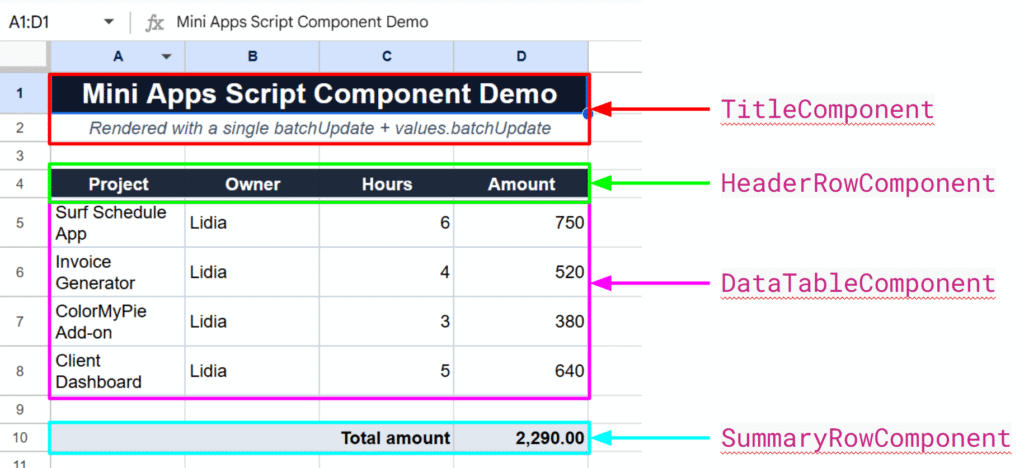
Let’s build a tiny dashboard using:
- TitleComponent
- HeaderRowComponent
- DataTableComponent
- SummaryRowComponent
Each is a simple SheetComponent that writes values and applies styles using this.context.
**
 * Component that writes a big title and optional subtitle at the top.
 */
class TitleComponent extends SheetComponent {

  render() {
    const sheetName = (this.props.sheetName);
    const title = (this.props.title);
    const subtitle = (this.props.subtitle);

    this.context.writeRange(`${sheetName}!A1`, [[title]]);
    this.context.mergeRange(sheetName, "A1:D1", "MERGE_ALL");
    this.context.setBackground(sheetName, "A1:D1", "#0f172a");
    this.context.setTextFormat(sheetName, "A1:D1", {
      bold: true,
      fontSize: 16,
      color: "#ffffff",
    });
    this.context.setAlignment(sheetName, "A1:D1", { horizontal: "CENTER", vertical: "MIDDLE" });

    if (subtitle) {
      this.context.writeRange(`${sheetName}!A2`, [[subtitle]]);
      this.context.mergeRange(sheetName, "A2:D2", "MERGE_ALL");
      this.context.setTextFormat(sheetName, "A2:D2", {
        italic: true,
        color: "#475569",
      });
      this.context.setAlignment(sheetName, "A2:D2", { horizontal: "CENTER", vertical: "MIDDLE" });
    }
  }
}

/**
 * Component that writes a header row with styling.
 */
class HeaderRowComponent extends SheetComponent {
  /**
   * @returns {void}
   */
  render() {
    const sheetName = (this.props.sheetName);
    const headers = (this.props.headers);
    const rowIndex = (this.props.rowIndex);

    const lastColLetter = columnIndexToLetter(headers.length);
    const rangeA1 = `${sheetName}!A${rowIndex}:${lastColLetter}${rowIndex}`;

    this.context.writeRange(rangeA1, [headers]);
    this.context.setBackground(sheetName, `A${rowIndex}:${lastColLetter}${rowIndex}`, "#1e293b");
    this.context.setTextFormat(sheetName, `A${rowIndex}:${lastColLetter}${rowIndex}`, {
      bold: true,
      color: "#ffffff",
    });
    this.context.setAlignment(sheetName, `A${rowIndex}:${lastColLetter}${rowIndex}`, {
      horizontal: "CENTER",
      vertical: "MIDDLE",
    });
  }
}

/**
 * Component that writes a 2D data table starting at a given row.
 */
class DataTableComponent extends SheetComponent {
  /**
   * @returns {void}
   */
  render() {
    const sheetName = (this.props.sheetName);
    const rows = (this.props.rows);
    const startRow = (this.props.startRow);

    if (!rows || rows.length === 0) return;

    const numCols = rows[0].length;
    const lastColLetter = columnIndexToLetter(numCols);
    const endRow = startRow + rows.length - 1;
    const rangeA1 = `${sheetName}!A${startRow}:${lastColLetter}${endRow}`;

    this.context.writeRange(rangeA1, rows);
    this.context.setBorders(sheetName, `A${startRow}:${lastColLetter}${endRow}`, {
      style: "SOLID",
      width: 1,
      color: "#cbd5e1",
    });
    this.context.setAlignment(sheetName, `A${startRow}:${lastColLetter}${endRow}`, {
      vertical: "MIDDLE",
    });
    this.context.setWrapStrategy(sheetName, `A${startRow}:${lastColLetter}${endRow}`, "WRAP");
  }
}

class SummaryRowComponent extends SheetComponent {
  /**
   * @returns {void}
   */
  render() {
    const sheetName = (this.props.sheetName);
    const label = (this.props.label);
    const rowIndex = (this.props.rowIndex);
    const numCols = (this.props.numCols);
    const amountColumnIndex = (this.props.amountColumnIndex);

    const lastColLetter = columnIndexToLetter(numCols);
    const labelCell = `A${rowIndex}`;
    const amountCell = `${columnIndexToLetter(numCols)}${rowIndex}`;
    const labelRangeSingle = `${sheetName}!${labelCell}`;
    const fullRowRange = `A${rowIndex}:${lastColLetter}${rowIndex}`;
    const amountRange = `${sheetName}!${amountCell}`;

    // Write label in a single cell only
    this.context.writeRange(labelRangeSingle, [[label]]);

    // Then merge the label area visually
    this.context.mergeRange(
      sheetName,
      `A${rowIndex}:${columnIndexToLetter(numCols - 1)}${rowIndex}`,
      "MERGE_ALL"
    );

    this.context.setAlignment(sheetName, fullRowRange, {
      horizontal: "RIGHT",
      vertical: "MIDDLE",
    });
    this.context.setBackground(sheetName, fullRowRange, "#e2e8f0");
    this.context.setTextFormat(sheetName, fullRowRange, {
      bold: true,
    });

    const dataStartRow = (this.props.dataStartRow);
    const dataEndRow = (this.props.dataEndRow);
    const amountColLetter = columnIndexToLetter(amountColumnIndex);
    const sumFormula = `=SUM(${amountColLetter}${dataStartRow}:${amountColLetter}${dataEndRow})`;

    this.context.writeRange(amountRange, [[sumFormula]]);
    this.context.setNumberFormat(sheetName, amountCell, "#,##0.00");
  }
}
Now let’s assemble everything inside a root component:
/**
 * Root dashboard component that composes title, headers, data and summary.
 */
class DemoDashboardComponent extends SheetComponent {

  render() {
    const sheetName = (this.props.sheetName);
    const headers = (this.props.headers);
    const rows = (this.props.rows);

    this.renderChild(TitleComponent, {
      sheetName,
      title: "Mini Apps Script Component Demo",
      subtitle: "Rendered with a single batchUpdate + values.batchUpdate",
    });

    const headerRowIndex = 4;
    this.renderChild(HeaderRowComponent, {
      sheetName,
      headers,
      rowIndex: headerRowIndex,
    });

    const dataStartRow = headerRowIndex + 1;
    this.renderChild(DataTableComponent, {
      sheetName,
      rows,
      startRow: dataStartRow,
    });

    const dataEndRow = dataStartRow + rows.length - 1;
    const summaryRowIndex = dataEndRow + 2;

    this.renderChild(SummaryRowComponent, {
      sheetName,
      label: "Total amount",
      rowIndex: summaryRowIndex,
      numCols: headers.length,
      amountColumnIndex: headers.length,
      dataStartRow,
      dataEndRow,
    });

    const lastColLetter = columnIndexToLetter(headers.length);
    this.context.autoResizeColumns(sheetName, `A1:${lastColLetter}${summaryRowIndex}`);
  }
}
Here’s a screenshot of the spreadsheet output, where you can see how each component contributes to the final layout:
Rendering the dashboard:
/**
 * Entry point: renders a full demo dashboard using the component system.
 *
 * @returns {void}
 */
function renderDemoDashboard() {
  const ss = SpreadsheetApp.openById("1mRno9TPj1iXGQ_lEqBIy3jOz4tyJm6upsVhklGuG1BQ")
  const spreadsheetId = ss.getId();
  const sheetName = "Demo";
  const headers = ["Project", "Owner", "Hours", "Amount"];
  const rows = [
    ["Surf Schedule App", "Lidia", 6, 750],
    ["Invoice Generator", "Lidia", 4, 520],
    ["ColorMyPie Add-on", "Lidia", 3, 380],
    ["Client Dashboard", "Lidia", 5, 640],
  ];

  renderSheet(spreadsheetId, DemoDashboardComponent, {
    sheetName,
    headers,
    rows,
  });
}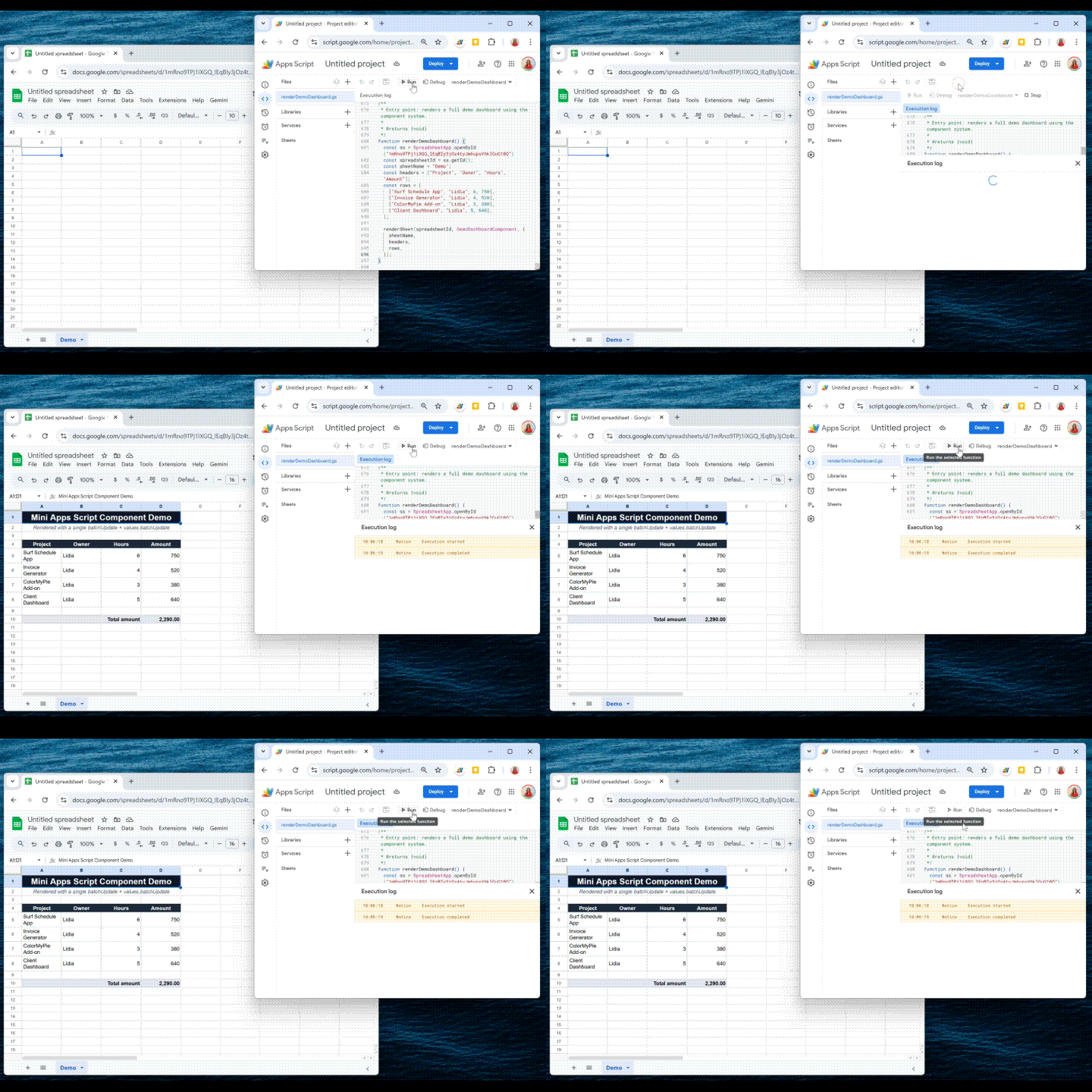
Even though the initial setup is a bit more structured, the final result:
- renders in 1 second
- stays perfectly maintainable
- allows components to be reused in any dashboard
Exactly the power of React, but in Google Sheets.
Final Thoughts
RenderSheet brings structure, speed, and clarity to Google Sheets development.
If you’re tired of repetitive formatting code or want to build Sheets dashboards the same way you build UIs, this pattern completely changes the experience.
Let me know what you think, and feel free to contribute!