
If you’ve been living in the comfy world of Apps Script and suddenly need “a real backend”, Google Cloud Run is a perfect next step.
You still don’t manage servers.
But now you can run any containerized app: Node, React SSR, Python, Go, whatever.
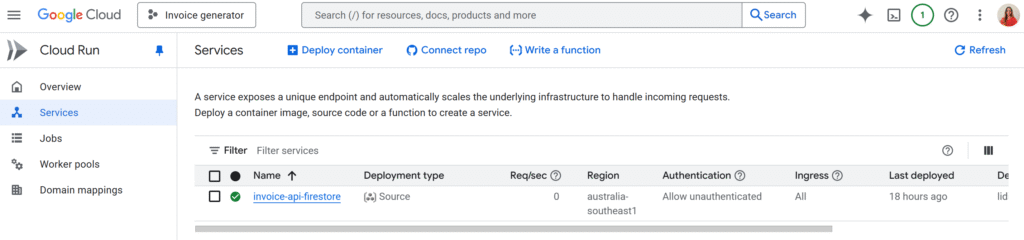
In this tutorial, we’ll:
- Explain what Cloud Run is in simple terms.
- Build a tiny Node.js HTTP API (which could just as well serve a React app).
- Deploy it to Cloud Run from source with a single
gcloud run deploycommand (no Docker installed locally). - Get a public HTTPS URL you can call from your frontend (React, Apps Script, or anything).
I will also include every relevant links in order to have evrything in one place 🙂
What is Cloud Run (in human words)?
Cloud Run is a serverless platform for containers:
- You package your code as a container image (or just push your source code and let Google build that image).
- Cloud Run runs that container on Google’s infrastructure, scaling up and down automatically depending on traffic.
- It can even scale to zero when nobody calls your service, so you don’t pay when it’s idle. Cloud Run documentation
- It works with any language or framework that can run in a container and listen for HTTP requests on the port specified by the
PORTenvironment variable. Build sources to containers
If you’re used to Apps Script web apps:
Think of Cloud Run as “Web Apps, but for any container you want, not just Apps Script.”
What we’ll build
We’ll deploy a very small Node.js backend:
GET /→ returns a JSON message.- It listens on the
PORTenvironment variable (so Cloud Run can wire it correctly). - We’ll deploy it using “Deploy from source”, which builds the container for you via buildpacks. Deploy services from source code
The exact same steps apply if your “backend” is a React SSR app, Next.js app, or any Node-based server.
Prerequisites
You’ll need:
- A Google account.
- A Google Cloud project with billing enabled. I personally always setup a max budget to avoid any surprise 🙂
- Cloud Run and Cloud Build APIs enabled (the console usually prompts you, or you can enable them manually). Quickstarts
- Node.js (v18+ recommended) and
npminstalled. - Google Cloud SDK (
gcloud) installed and authenticated on your machine. Deploy services from source code
Step 1 – Create the backend project
Create a new folder and init package.json:
mkdir cloud-run-backend
cd cloud-run-backend
npm init -y
npm install express
Create index.js:
const express = require("express");

/**
 * Creates an Express application with a simple JSON endpoint
 *
 * @returns {import("express").Express} The configured Express app.
 */
function createApp() {
  const app = express();

  app.get("/", (req, res) => {
    res.json({
      message: "Hello from Cloud Run",
      project: "First backend",
      timestamp: new Date().toISOString(),
    });
  });

  return app;
}

/**
 * Starts the HTTP server for the given Express app.
 *
 * @param {import("express").Express} app - The Express application instance.
 * @returns {void}
 */
function startServer(app) {
  const port = process.env.PORT || 8080; // Cloud Run injects PORT
  app.listen(port, () => {
    // eslint-disable-next-line no-console
    console.log(`Server listening on port ${port}`);
  });
}

const app = createApp();
startServer(app);
The important detail:
Cloud Run will set an environment variable PORT. Your app must listen on that port.
Step 2 – Add the start script
Open package.json and add a "start" script:
{
   "name": "cloud-run-backend",
   "version": "1.0.0",
   "main": "index.js",
   "type": "commonjs",
   "scripts": {
      "start": "node index.js"
    },
   "dependencies": {
      "express": "^4.21.0"
   }
}
Cloud Run’s Node buildpack knows how to run npm start by default.
Step 3 – Test locally
npm install
npm start
You should see:
Server listening on port 8080In another terminal:
curl http://localhost:8080You’ll get a JSON response with your message and a timestamp.
If it works locally, you’re ready for the cloud.
Step 4 – Configure gcloud
Log in:
gcloud auth loginSet your project and region (example: australia-southeast1):
gcloud config set project YOUR_PROJECT_ID<br>gcloud config set run/region australia-southeast1Pick the region closest to your users.
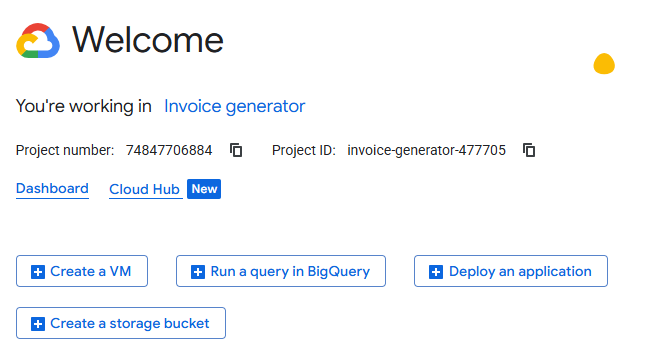
You can find your project ID in the Cloud Overview dashboard of your project:
Step 5 – Deploy to Cloud Run from source
From inside cloud-run-backend:
gcloud run deploy cloud-run-backend \
--source . \
--allow-unauthenticated
This single command:
- Sends your source code to Cloud Build
- Builds a container image (using buildpacks or Docker under the hood)
- Creates a Cloud Run service called
cloud-run-backend - Gives it a public HTTPS URL
At the end you’ll see something like:
Service [cloud-run-backend] revision [cloud-run-backend-00001-abc]
has been deployed and is serving 100 percent of traffic at:
https://cloud-run-backend-xxxxx-uc.a.run.app
Copy that URL, that’s your backend, live on the internet 🎉
Step 6 – Call your new backend
From anywhere:
curl https://cloud-run-backend-xxxxx-uc.a.run.appor open it in the browser.
Cloud Run gives you:
- HTTPS by default
- Auto-scaling
- A generous free tier (millions of requests/month) to experiment safely
TL;DR
- If you’ve been living in Apps Script land and need a “real backend”, Cloud Run lets you run any containerized app (Node, Python, Go, React SSR…) without managing servers.
- You build a tiny Node.js HTTP API that listens on the
PORTenvironment variable. - You deploy it with a single command:
gcloud run deploy cloud-run-backend \ --source . \ --allow-unauthenticated - Google Cloud builds the container for you, creates a Cloud Run service, and gives you a public HTTPS URL.
- That URL can be called from React, Apps Script, or any frontend, and Cloud Run handles scaling, HTTPS, and a generous free tier in the background.
Conclusion
Cloud Run is a really nice bridge between the simplicity of Apps Script and the flexibility of “real” backends. You keep the good parts (no servers to manage, automatic scaling, pay-per-use) and you unlock the ability to run any language or framework you like.
In this tutorial, you:
- Created a small Node.js API
- Tested it locally
- Deployed it to Cloud Run from source
- Got a live HTTPS URL you can plug into any frontend
From here, you can start wiring Cloud Run into your own projects: connect it to a React app, protect your endpoints with authentication, or add a database like Firestore or Cloud SQL.
If you try this out or deploy your own mini SaaS on Cloud Run, let me know, I’d love to see what you build !