
Working with Google Apps Script and Google Forms often means mapping answers to the right question. For that, you need the question ID, a stable identifier that won’t change if you edit the title.
In this post, we’ll cover two simple ways to grab it: with Apps Script (getItems()) and via DevTools inspection of the live form. These methods are perfect for automation, building prefilled URLs, and keeping your form integrations reliable.
With Apps Script (getItems())
Use FormApp to loop through all items and match on the title. Great when you already know the exact question label.
/**
 * Return the question ID (string) that matches a given title.
 * @param {FormApp.Form} form
 * @param {string} questionTitle
 * @return {string|null}
 */
function retrieveItemId(form, questionTitle) {
  const items = form.getItems();
  for (let i of items) {
    if (i.getTitle().trim() == questionTitle.trim()) {
      return i.getId().toString();
    }
  }
  return null;
}
Why this is useful: you can rename a question in the UI without breaking scripts that rely on the ID later (IDs are stable; titles are not).
DevTools inspection (quick & dirty)
If you only need a question ID once and you have the live Google Form open, you can grab it straight from the page markup.
Steps:
- Open the live form (the “view” URL, not the editor).
- Right-click → Inspect (Chrome DevTools).
- Press Ctrl/Cmd + F and search for the exact question title (e.g.,
Name). - Look for a parent
<div>with attributes likejsmodelanddata-params. Inside that blob you’ll typically see both IDs:- The first number after the title block is the Apps Script itemId (what
FormApp.getItems()returns). - Inside a nested array you’ll also see the prefill entry id used in URLs.
- The first number after the title block is the Apps Script itemId (what
<div jsmodel="CP1oW"
data-params="... [826355120, "Name", ..., [[2092238618, null, true, ...]] ] ...">
...
</div>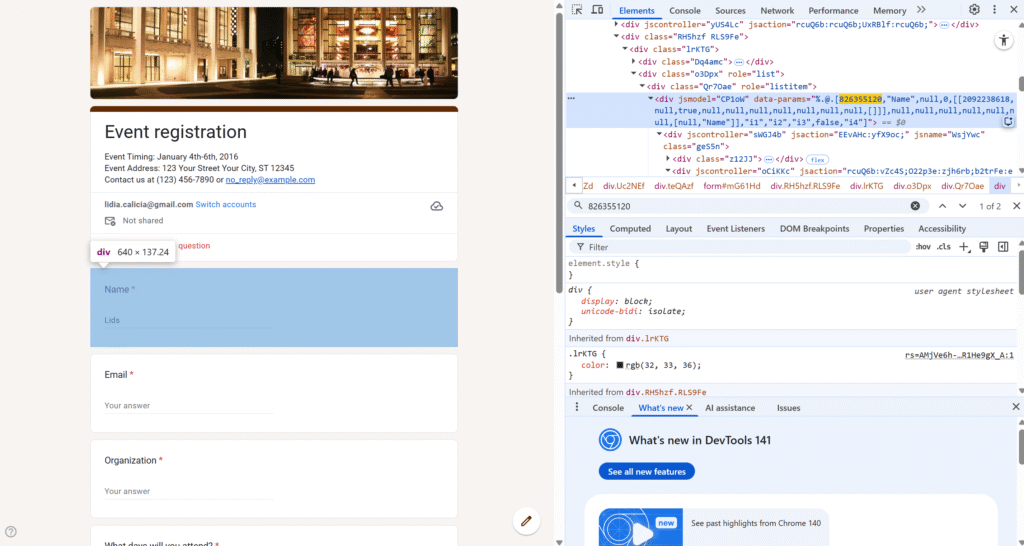
826355120 → itemId (returned by item.getId() in Apps Script)
2092238618 → prefill entry id (used as entry.2092238618=... in a prefilled link)
When to use this approach: fast, one-off lookup while you’re building your Apps Script, testing a prefilled URL, or debugging.
Caveat: this relies on the page’s internal structure, which can change. For anything automated or repeatable, prefer Method 1 (FormApp) or Method 3 (Forms API).