
Here are 10 Google Sheets tips I use in my day-to-day.
You might recognise a few of them, but I’m pretty confident you’ll still learn something new!
Highlight an entire row based on a single cell
One of the most common questions:
“I want the whole row to change color when the status is ‘Done’ / the date is today / the checkbox is ticked.”
Example: highlight every review row where column D is "Negative".
1 – Open Conditional format rules (Format > Conditional formatting)
2 – Select the range you want to format, e.g. A1:E1000.
3 – Under “Format rules”, choose “Custom formula is“
4 – Insert the formula:
=$D1="Negative"5 – Choose your formatting style and click Done.
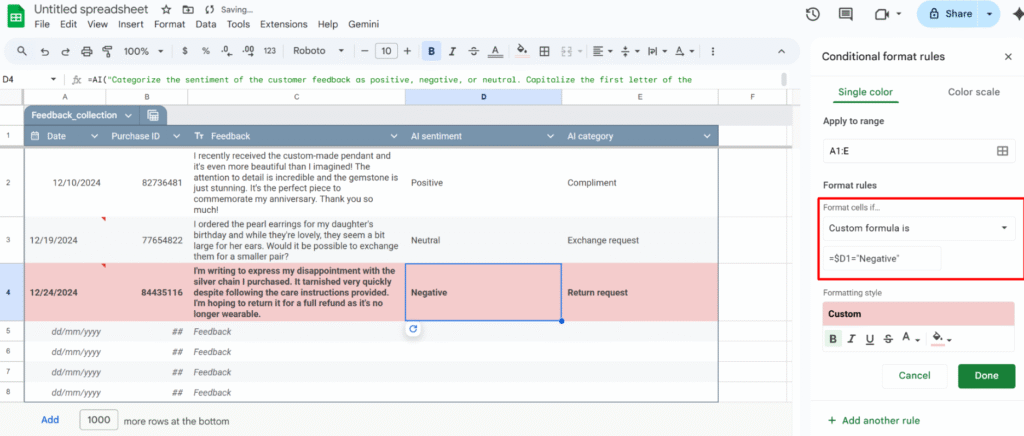
Because the range starts at row 1, the formula uses =$D1. If your range starts at row 2 (for example, you skipped the header row), you’d use:
=$D2="Negative"Use checkboxes to drive your formatting and logic
You can use checkboxes as a simple “on/off” switch to control formatting.
Example: highlight the entire row when the checkbox in column F is checked.
- Format → Conditional formatting → Custom formula is:
- Insert checkboxes in
A1:F1000
- Select the range to format, e.g.
A1:F1000.
=$F1=true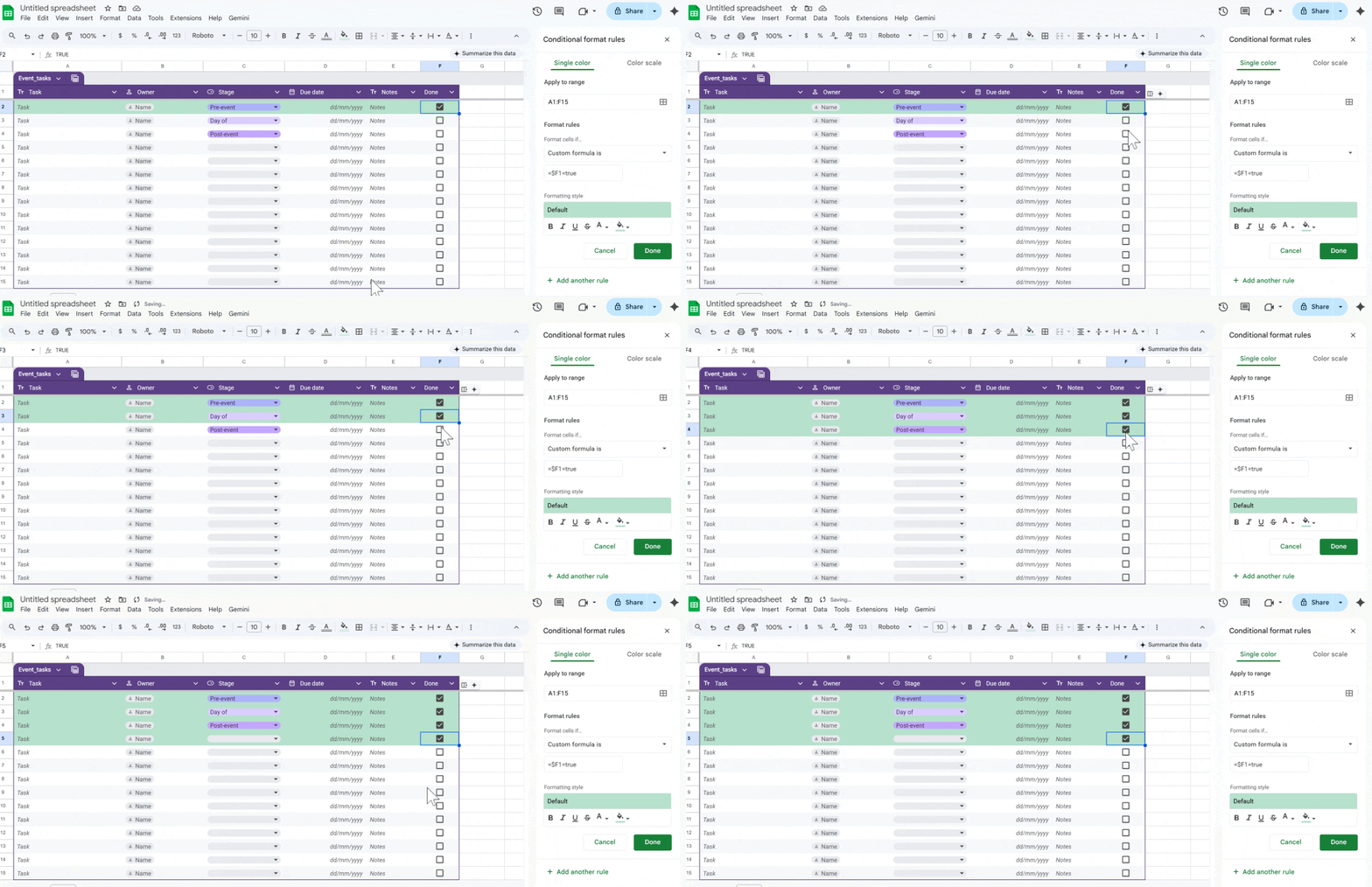
Turn ratings into a quick dropdown (@rating)
If you want fast feedback in a sheet (for tasks, clients, content, etc.), convert a column into a simple rating system.
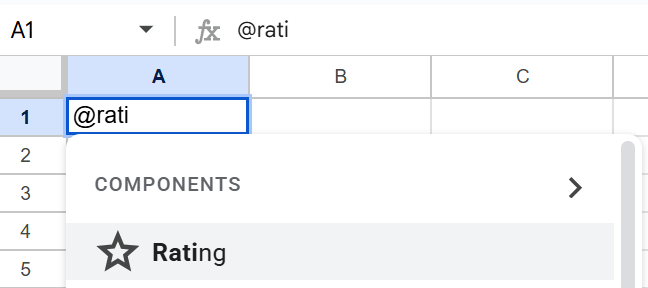
With the Rating smart chip (@rating):
- In a cell, type
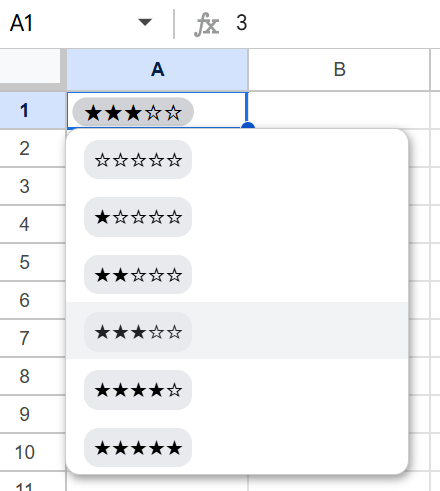
@ratingand insert the Rating component. - It creates a small star-based rating widget you can click to set the score.
You now have:
- A consistent rating scale across your sheet.
- An easy way to scan what’s high/low rated at a glance.
- A clean input that still behaves like a value you can reference in formulas or filters.
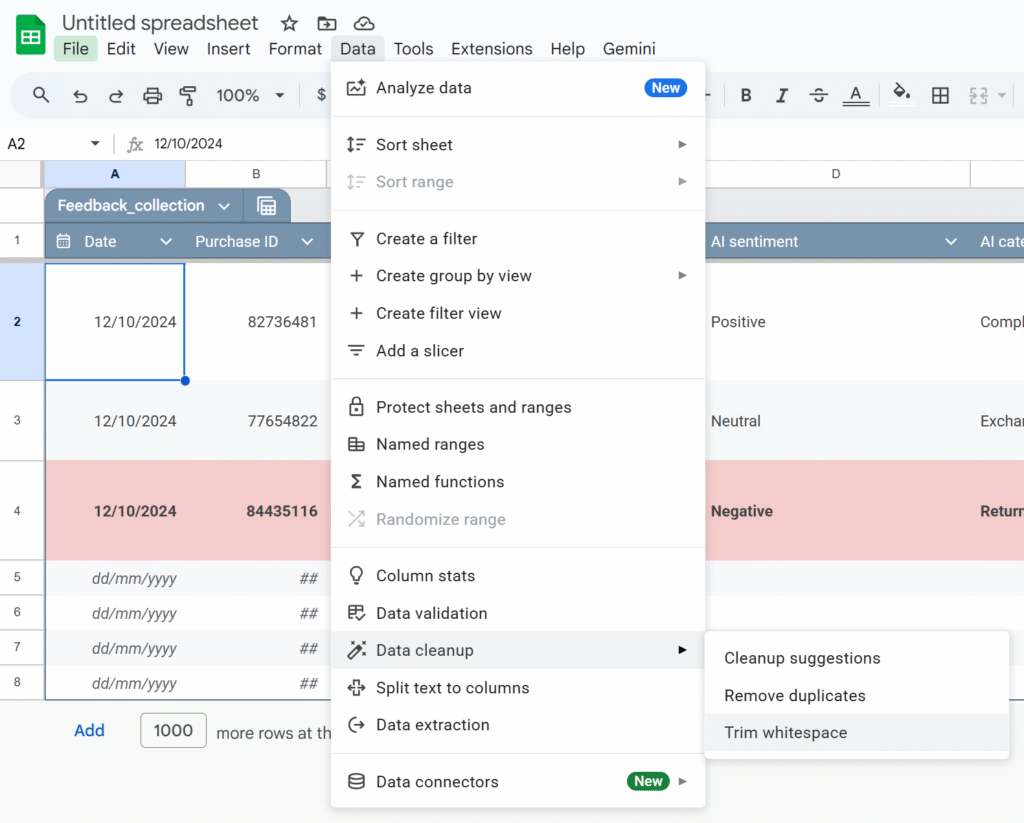
Use Data cleanup
Imported data is messy: extra spaces, duplicates, weird values. Google added built-in cleanup tools that are massively underused.
- Cleanup suggestions: A sidebar proposes actions: remove duplicates, fix inconsistent capitalization, etc.
- Remove duplicates: You choose the columns to check; Sheets shows how many duplicates it found and removes them.
- Trim whitespace: This fixes issues where
"ABC"and"ABC "look the same but don’t match in formulas.
Run these before you start building formulas. It saves a lot of debugging time later.
Stop dragging formulas: use ARRAYFORMULA
Common spreadsheet horror story: “My new rows don’t have the formula”, or “someone overwrote a formula with a value”.
ARRAYFORMULA lets you write the formula once and apply it to the whole column.
Example: instead of this in E2:
=B2*C2and dragging it down, use:
=ARRAYFORMULA(
  IF(
    B2:B="",
    ,
    B2:B * C2:C
  )
)
This:
- Applies the multiplication to every row where column B is not empty.
- Automatically covers new rows as you add data.
- Reduces the risk of someone “breaking” a single cell formula in the middle of your column.
Split CSV-style data into columns (without formulas)
If you’ve ever:
- Pasted CSV data into column A,
- Used
=SPLIT()everywhere, - Then deleted column A manually…
You don’t have to.
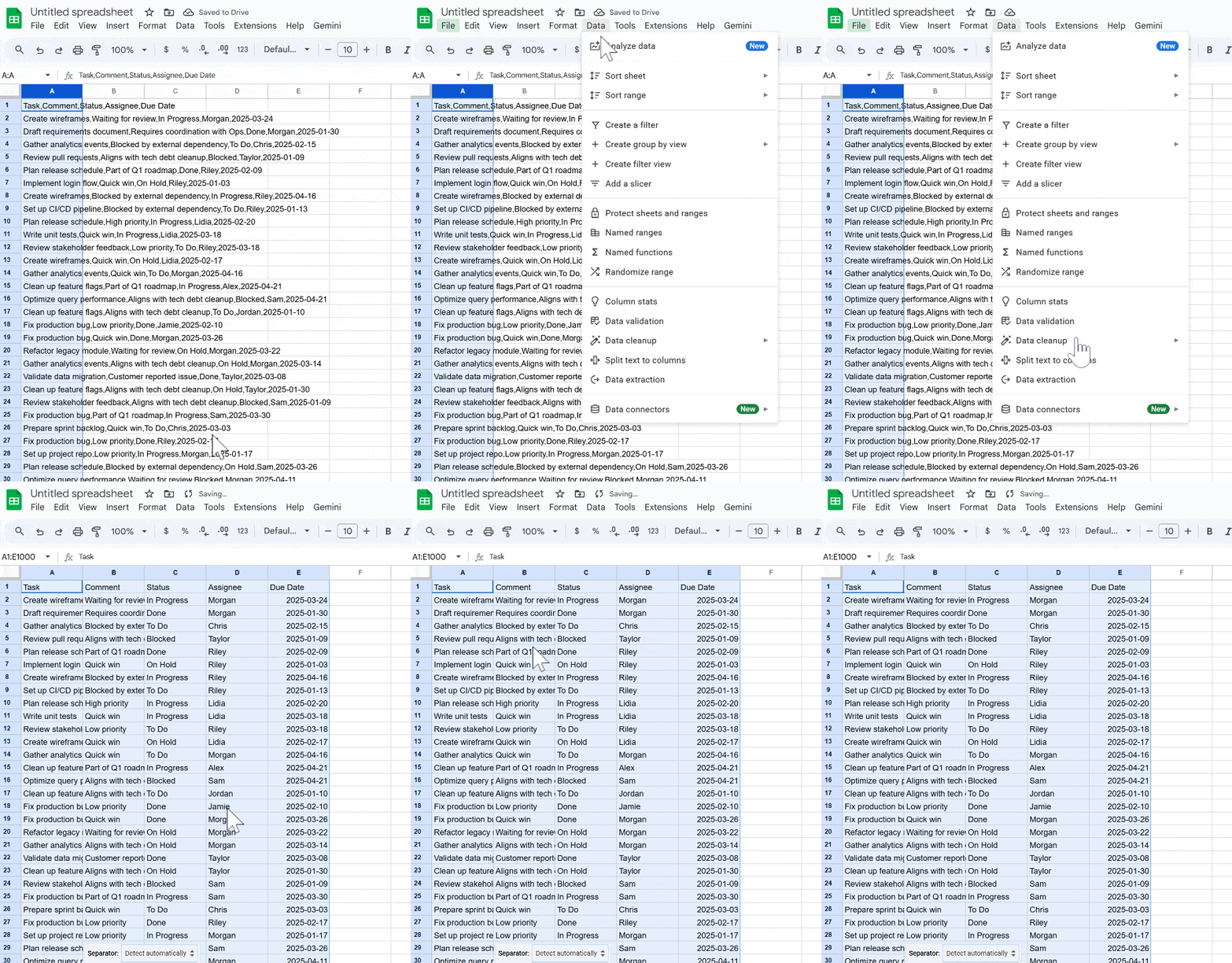
Use Data → Split text to columns:
- Paste the raw data into one column.
- Select that column.
- Go to Data → Split text to columns.
- Choose the separator (comma, semicolon, space, custom, etc.).
Sheets automatically splits your data into multiple columns without formulas.
Use QUERY instead of copy-pasting filtered tables
Instead of manually filtering and copy-pasting, use QUERY and FILTER to build live views of your data.
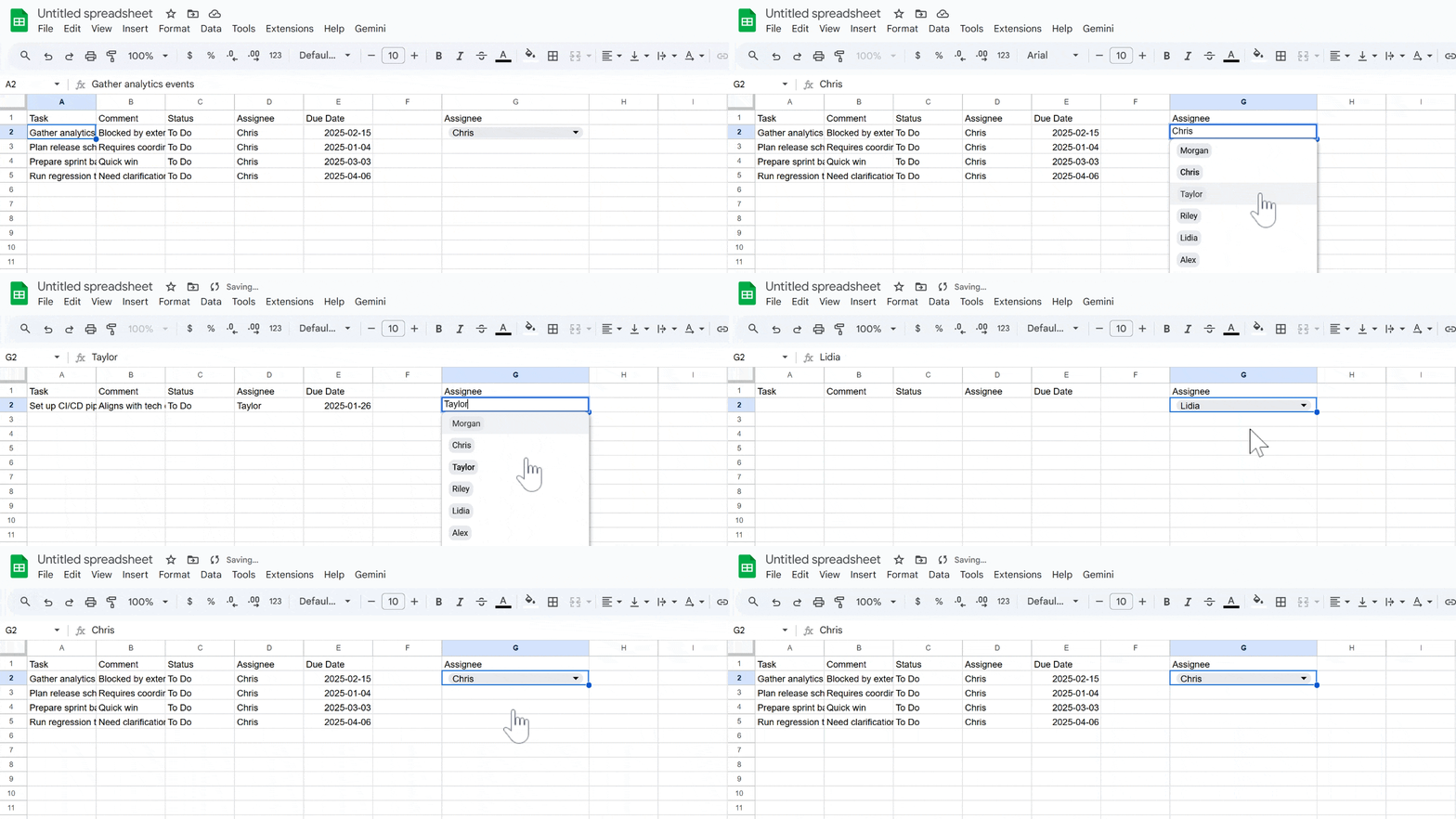
Example: from a master task sheet (Sheet4!A1:E), create a separate view with only “To Do” tasks assigned to the person in G2:
=QUERY(
  Sheet4!A1:E,
  "select A, B, C, D, E
   where C = 'To Do'
   and D = '" & G2 & "'
   order by A",
  1
)
Whenever the main sheet is updated, this view updates automatically, no manual copy-paste needed.
Use column stats to extract quickly key info
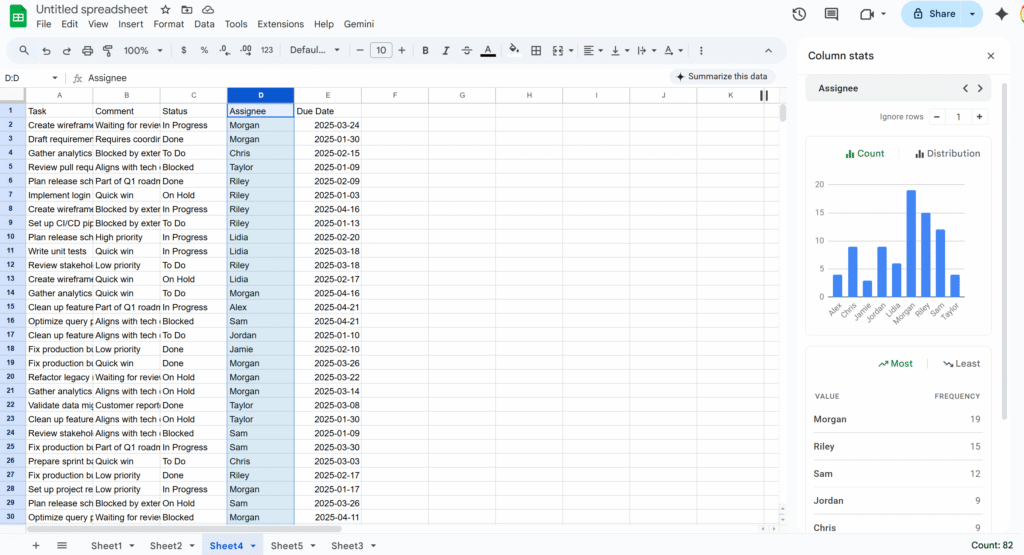
If you need a quick snapshot of what’s inside a column—value distribution, most common entries, min/max, etc.—use Column stats.
- Right-click a column header.
- Select Column stats.
You’ll get:
- A count of unique values.
- Basic stats (for numbers).
- A small chart showing frequency by value.
Store phone numbers and IDs as text (so Sheets doesn’t “fix” them)
Sheets tries to be clever with numbers, which is bad news for things like phone numbers and IDs:
- Leading zeros get removed.
- Long IDs may be turned into scientific notation.
Best practices:
- Set the column to Plain text:
Format → Number → Plain text. - Enter numbers with a leading apostrophe:
'0412 345 678 - Do the same for anything that looks numeric but isn’t a real “number”: phone numbers, SKUs, customer IDs, etc.
This prevents silent changes that are hard to detect later.
Prompt Gemini directly in your Sheets
Google Sheets now has a native AI function (often exposed as =AI() or =GEMINI(), depending on your Workspace rollout) that lets you talk directly to Google’s Gemini model from a cell.
Instead of nesting complex formulas, you can write natural-language prompts like:
=AI("Summarize this text in 3 bullet points:", A2)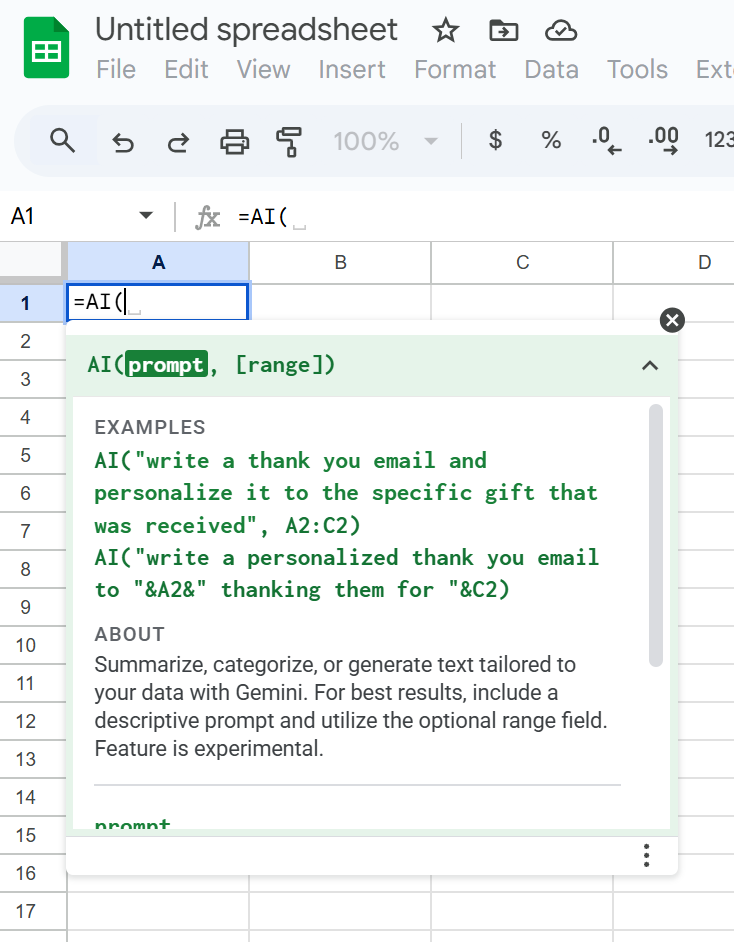
You can use it to:
- Summarize long text.
- Classify or tag entries.
- Extract key information from a sentence.
- Generate content (subject lines, slogans, short paragraphs).
Because the prompt and the reference (like A2) live right in the formula, you can apply AI logic across a whole column just like any other function—without touching Apps Script or external tools.
If anything’s missing from this list, tell me! I’d love to hear your favourite Sheets tips and ideas.