
Dashboards feel magical when they react instantly to a selection, no scripts, no reloads, just smooth changes as you click a dropdown.
In this tutorial, we will build exactly that in Google Sheets: pick a Region, optionally refine by Store and Category, and watch your results table update in real time. We’ll use built-in tools, Data validation for dropdowns and QUERY for the live results, so it’s fast, maintainable, and friendly for collaborators.
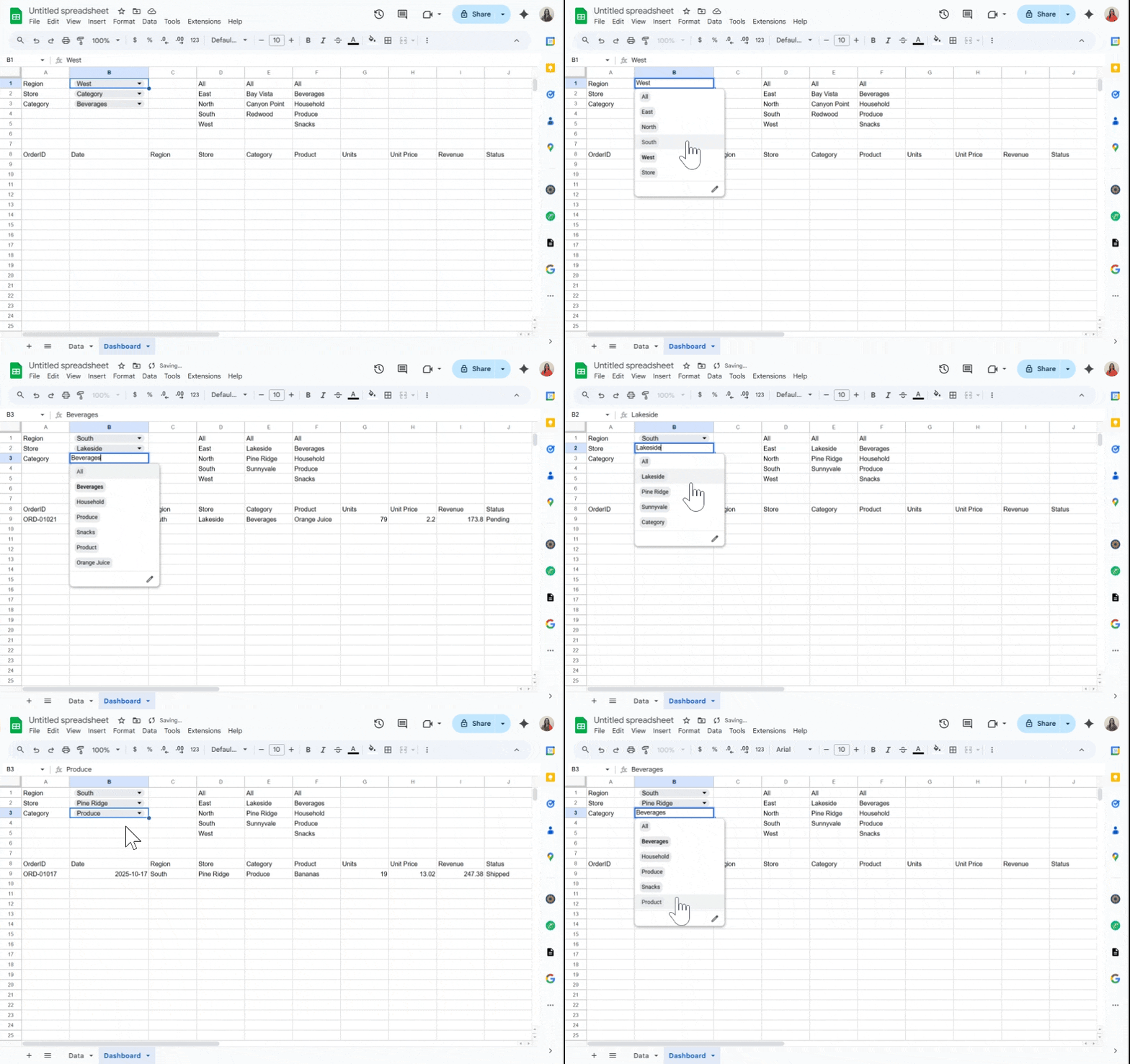
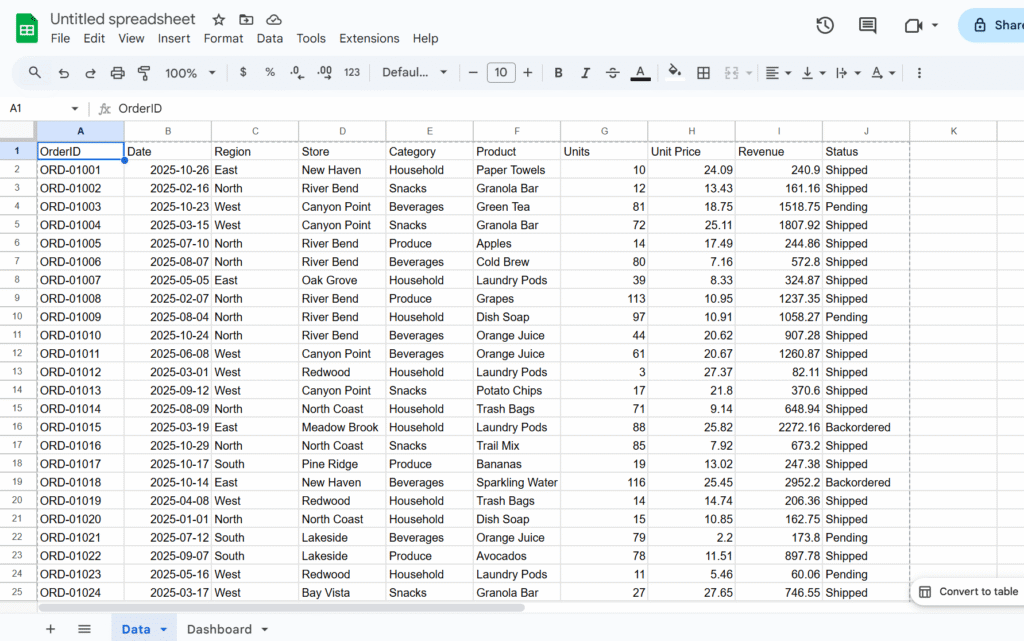
In this example, we’ll use a sales dataset and create dropdowns for Region, Store, and Category, but you can easily adapt the approach to your own data and fields.
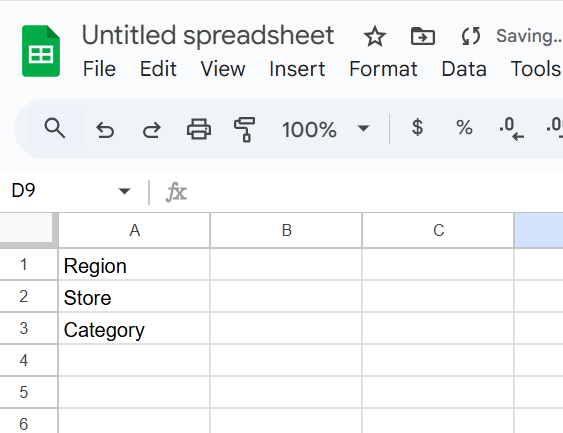
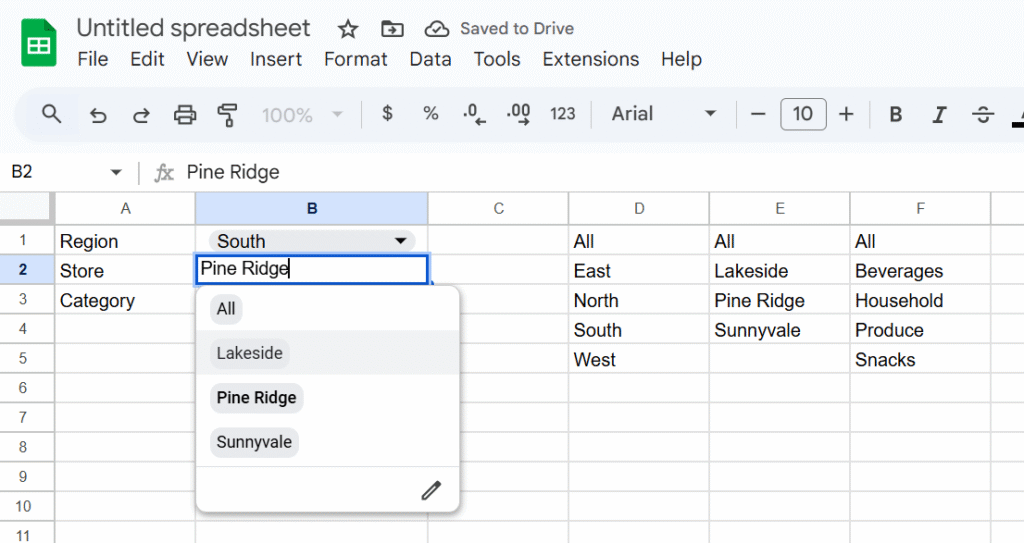
Step 1 – Add control labels
Let’s create a sheet, named Dashbaord, and add
A1: Region
A2: Store (dependent on Region)
A3: Category
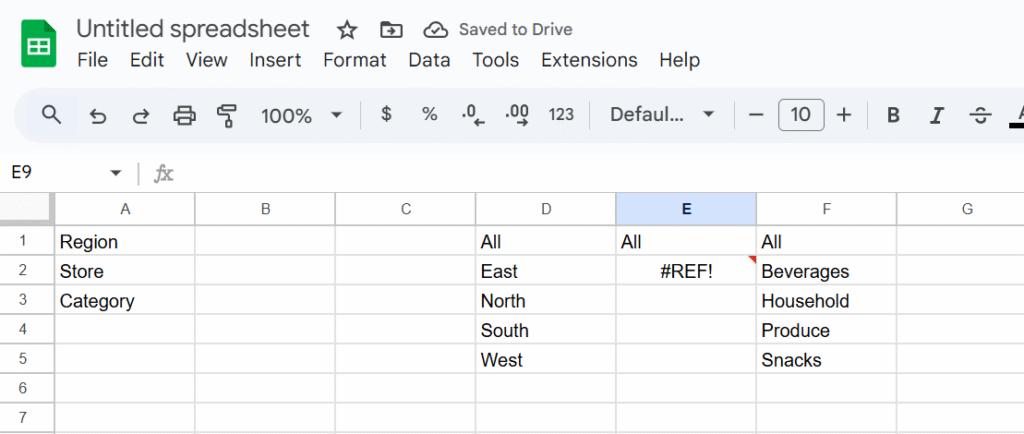
Step 2 – Build dynamic lists (helper formulas)
In column D, we will create a dynamic list of region with the following formula (insert the formula in D1):
={"All"; SORT(UNIQUE(FILTER(Data!C2:C, Data!C2:C<>"")))}In column E, we will create a depending list for stores (changes when store update)
={"All";
  IF(Dashboard!B1="All",
     SORT(UNIQUE(FILTER(Data!D2:D, Data!D2:D<>""))),
     SORT(UNIQUE(FILTER(Data!D2:D, Data!C2:C=Dashboard!B1)))
  )
}
And in column F, the products
={"All"; SORT(UNIQUE(FILTER(Data!E2:E, Data!E2:E<>"")))}Why formulas instead of manual lists? They stay in sync when new rows arrive.
Step 3 — Create the dropdowns (Data → Data validation)
B1 (Region): List from a range → Dashboard!D1:D
B2 (Store): List from a range → Dashboard!D2:D
B3 (Category): List from a range → Dashboard!D3:D
Enable “Show dropdown” and set “Reject input” to avoid typos.
Step 4 — Place the QUERY result table
Pick a location for your live table—let’s use Dashboard!A5. Paste this formula:
=QUERY(
  Data!A1:J,
  "select * where (" &
    "(Col3 = '"&SUBSTITUTE(B1,"'","''")&"' or '"&B1&"'='All') and " &
    "(Col4 = '"&SUBSTITUTE(B2,"'","''")&"' or '"&B2&"'='All') and " &
    "(Col5 = '"&SUBSTITUTE(B3,"'","''")&"' or '"&B3&"'='All')" &
  ")",
  1
)
How it works
- The source range Data!A1:J sets column numbers for QUERY:
- Col3 = Region, Col4 = Store, Col5 = Category.
- Each condition allows “All” to match everything.
SUBSTITUTE(...,"'","''")safely escapes values likeO'Brien.
If your headers aren’t in row 1, change the last parameter (
1) to the correct header row count or adjust the range.
Hope this walkthrough helped! If there’s another Sheets topic you’d like me to cover, drop it in the comments.