
In othe previous article, we learned how to replace placeholders like [name] or [date] inside a Google Doc using Apps Script. We also made sure to keep the original file intact by creating a copy before applying replacements.
That’s great for a single document… but what if you need to create dozens of personalized files? Contracts, certificates, letters, all with different values?
The answer: connect your Google Doc template to a Google Sheet.
Each row of your sheet will represent a new document, and the script will:
- Create a copy of the template
- Replace all placeholders with values from the sheet
- Paste the link of the generated file back into the spreadsheet
Step 1 – Prepare your Spreadsheet
Create a sheet with the following structure (headers in the first row):
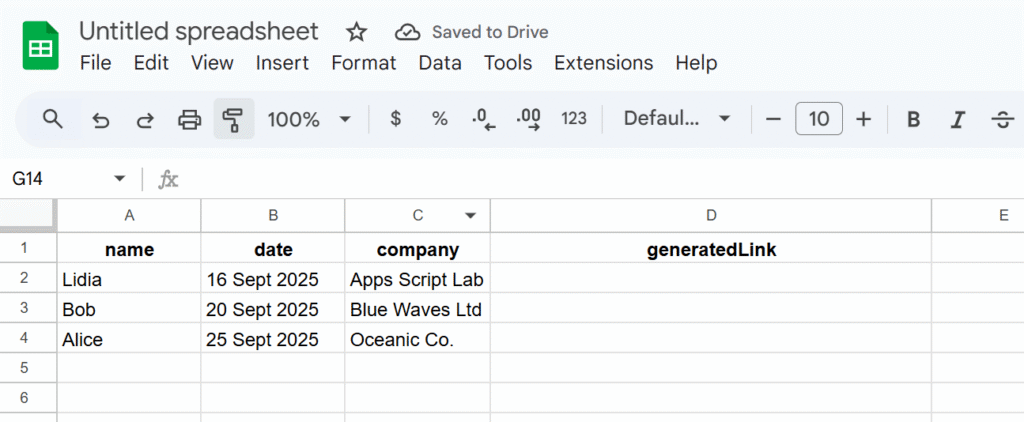
Notice the last column generatedLink, that’s where the script will paste the URL of each generated document.
Step 2 – Prepare your Google Doc Template
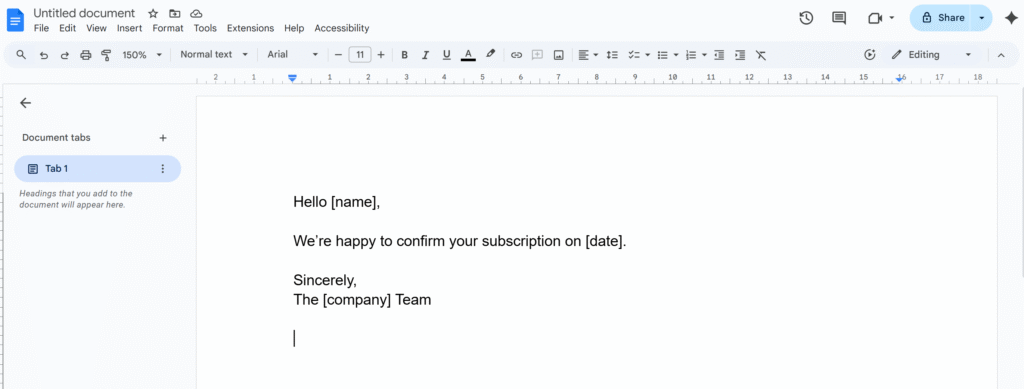
In your template, write placeholders between brackets:
Step 3 – The Script
This time the script will be bounded to our Google Sheets.
Open the Apps Script editor from your Spreadsheet (Extensions → Apps Script) and paste:
/**
 * Generate documents from a template Doc,
 * replacing placeholders with data from the sheet,
 * and storing links back in the sheet.
 */
function generateDocsFromSheet() {
  // IDs
  const TEMPLATE_ID = 'YOUR_TEMPLATE_DOC_ID_HERE';
  const FOLDER_ID = 'YOUR_TARGET_FOLDER_ID_HERE';

  const ss = SpreadsheetApp.getActiveSpreadsheet();
  const sheet = ss.getActiveSheet();
  const data = sheet.getDataRange().getValues();
  const headers = data[0];

  // Loop through each row (skip headers)
  for (let i = 1; i < data.length; i++) {
    const row = data[i];

    // Skip if doc already generated
    if (row[headers.indexOf('generatedLink')]) continue;

    // Build replacements
    const replacements = {};
    headers.forEach((h, idx) => {
      if (h !== 'generatedLink') {
        replacements[`\\[.*${h}.*\\]`] = row[idx];
      }
    });

    // Make copy of template
    const templateFile = DriveApp.getFileById(TEMPLATE_ID);
    const copyFile = templateFile.makeCopy(
      `Generated_${row[0]}_${new Date().toISOString().slice(0,10)}`,
      DriveApp.getFolderById(FOLDER_ID)
    );

    // Open and replace placeholders
    const doc = DocumentApp.openById(copyFile.getId());
    const body = doc.getBody();
    for (let tag in replacements) {
      body.replaceText(tag, replacements[tag]);
    }
    doc.saveAndClose();

    // Save link back into sheet
    sheet.getRange(i+1, headers.indexOf('generatedLink')+1)
      .setValue(copyFile.getUrl());
  }
}
Step 4 – Run the Script
- Replace
YOUR_TEMPLATE_DOC_ID_HEREwith your template’s Doc ID - Replace
YOUR_TARGET_FOLDER_ID_HEREwith the ID of the folder where generated docs should be stored - Run the script → authorize it → watch your documents appear!
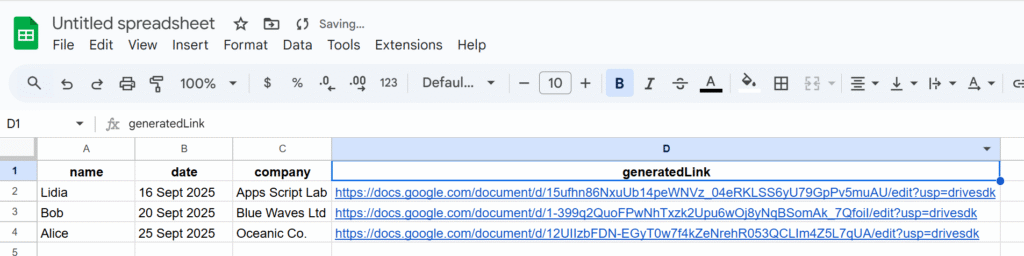
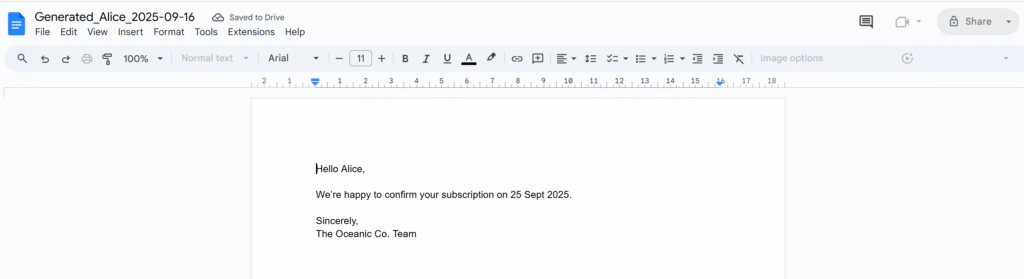
Each row in your sheet now produces a new Google Doc, and the link is written back automatically:
Wrap Up
With just a few lines of code, you’ve upgraded your document automation:
- One Google Doc becomes a reusable template
- One Google Sheet becomes a data source
- Each row produces a personalized document with its link logged back
This setup is basically a DIY mail-merge for Docs
In the next article, we’ll explore how to send those generated documents automatically by email, turning your workflow into a fully automated system.